Monitor Conditional Access Policy Changes
Introduction
Conditional Access is one of the highest impact components of Microsoft Entra. A single policy change can weaken MFA requirements, accidentally lock out users, or modify access conditions in ways that go unnoticed. Because these changes directly affect your authentication boundary, every modification should be monitored and alerted on in real time.
In this guide you will connect Entra audit logs to Log Analytics, build a KQL query that detects Conditional Access policy changes, and turn that query into an Azure Monitor alert that immediately notifies you when a policy is added, updated, or deleted.
Prerequisites
- Microsoft Entra ID P1 or P2
- A Log Analytics workspace
- Ability to configure diagnostic settings in Entra (Global Admin, Security Admin, Identity Admin, etc)
- Monitoring Contributor or Log Analytics Contributor role on the workspace
How the Workflow Works
- Conditional Access changes generate events in Entra Audit Logs.
- Diagnostic settings stream those logs to a Log Analytics workspace.
- A KQL query looks for CA policy add, update, and delete operations.
- Azure Monitor runs that query on a schedule.
- If results are found, an alert fires through an Action Group (email, Teams, SMS, webhook, etc).
Step 1: Enable Entra Audit Logs to Log Analytics
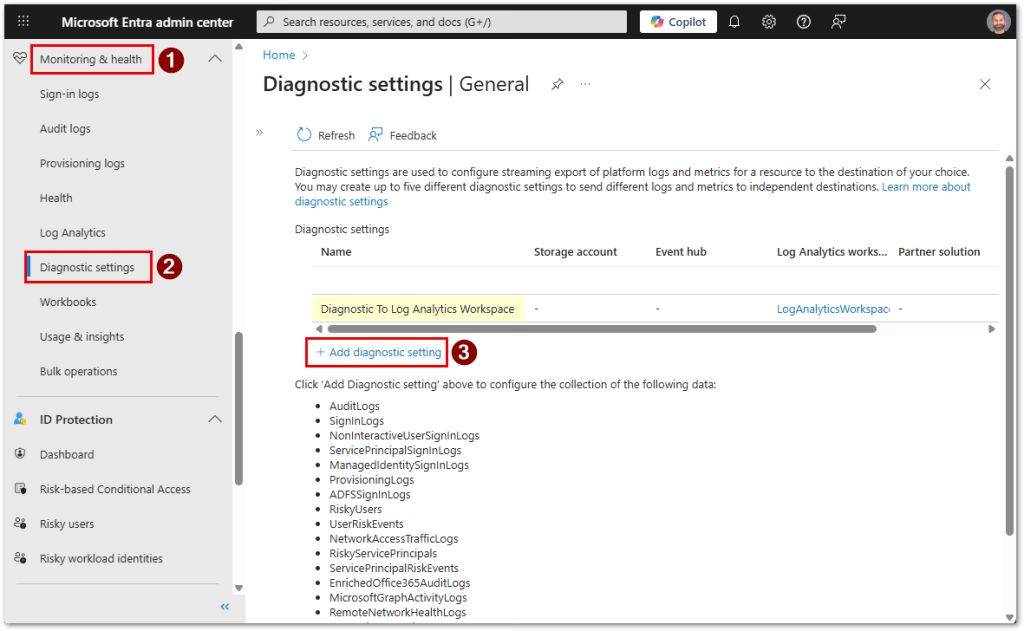
- Go to https://entra.microsoft.com
- Navigate to Identity > Monitoring and health > Diagnostic settings
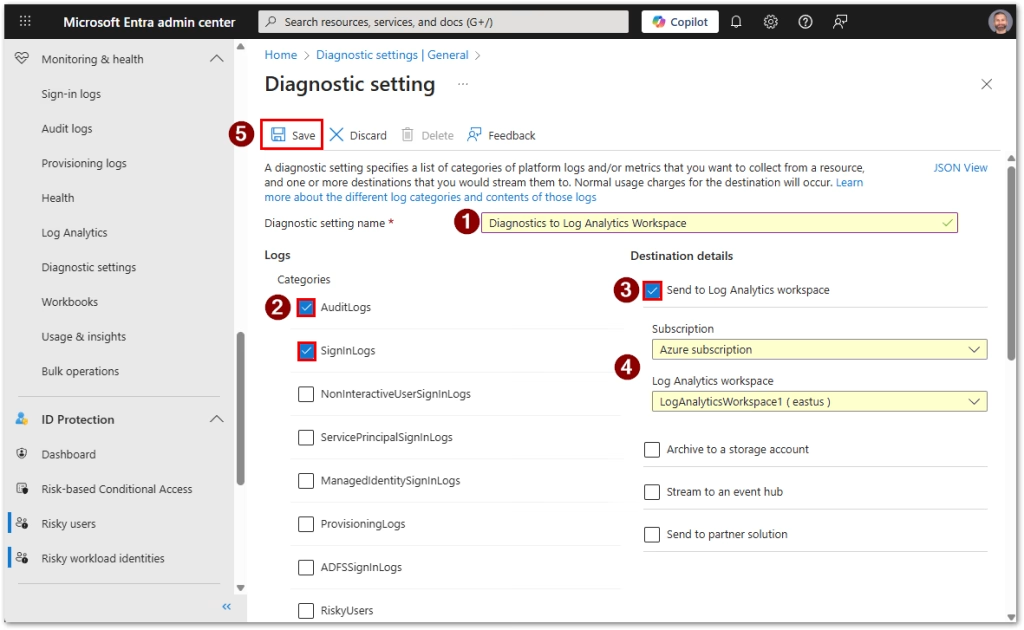
- Create a diagnostic setting or edit an existing one
- Enable the AuditLogs category (optionally add the SignInLogs too which can come in handy later)
- Send to Log Analytics workspace and select your workspace
- Save
Verify Logs Are Flowing
- Go to Azure portal https://portal.azure.com
- Open your Log Analytics Workspace
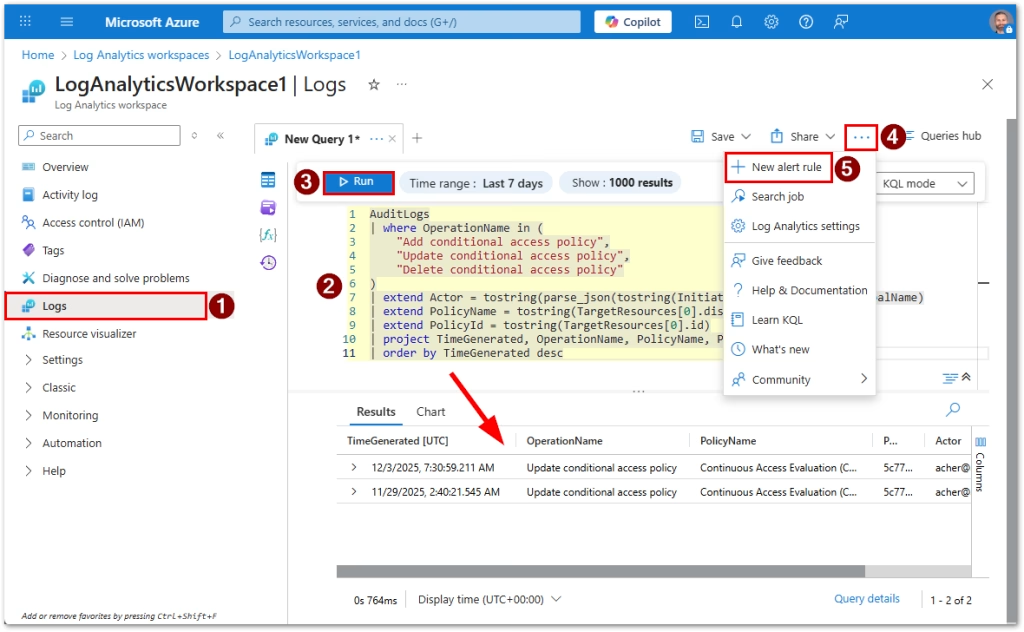
- Click on Logs your Log Analytics workspace
- Make sure KQL mode is selected
- Enter the query below
- Click Run
AuditLogs
| top 10 by TimeGenerated desc
If you see fresh entries like below, continue with next steps.

Step 2: Build the KQL Query for CA Policy Changes
Enriched Query
This pulls actor name and policy details, which look much better in an alert payload.
AuditLogs
| where OperationName in (
    "Add conditional access policy",
    "Update conditional access policy",
    "Delete conditional access policy"
)
| extend Actor = tostring(parse_json(tostring(InitiatedBy.user)).userPrincipalName)
| extend PolicyName = tostring(TargetResources[0].displayName)
| extend PolicyId = tostring(TargetResources[0].id)
| project TimeGenerated, OperationName, PolicyName, PolicyId, Actor
| order by TimeGenerated desc
Run the new query as in the previous step. If you see events, you’re ready to turn this into an alert.
Step 3: Create the Azure Monitor Alert Rule
Launch the Alert Wizard
- With your query loaded in the Logs window (see previous step)
- Click three dots (…) button at the top right
- Select New alert rule
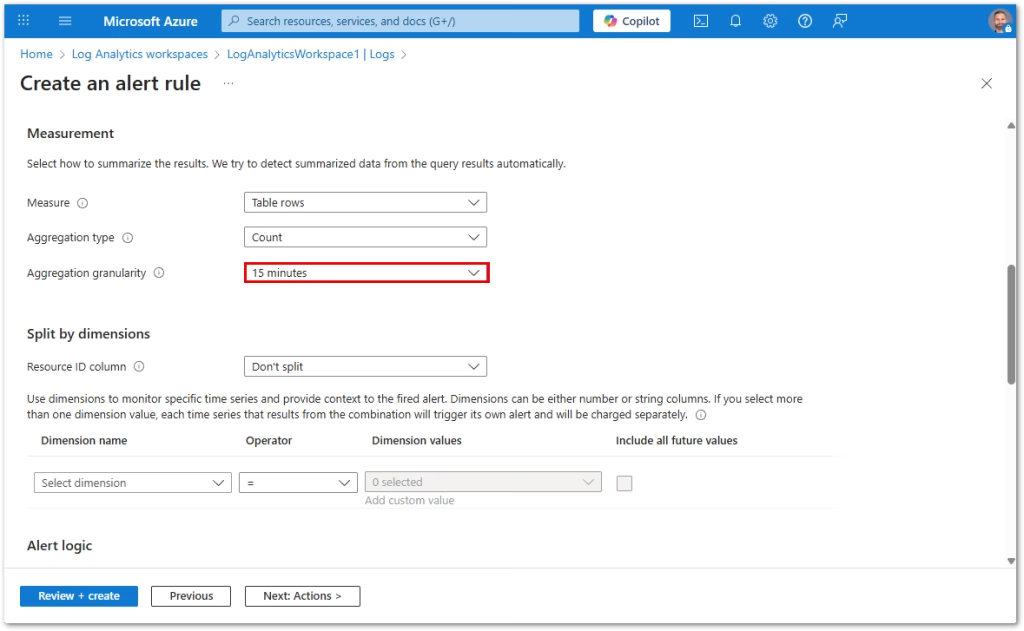
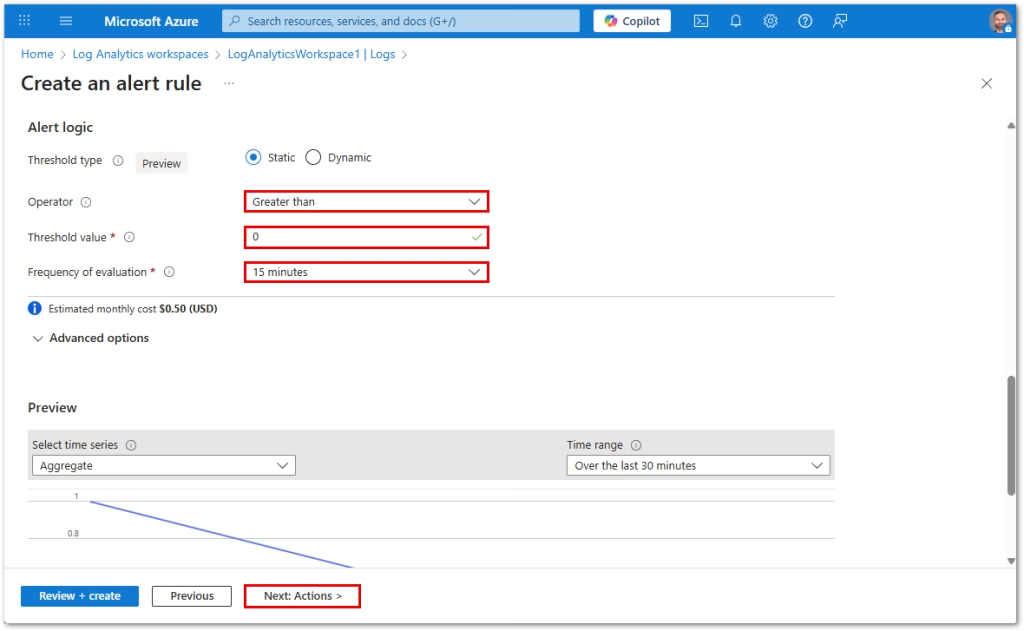
Configure the Condition
- Under Condition, select Customize signal logic
- Based on: Number of results
- Operator: Greater than
- Threshold: 0
- Evaluation period: 15 minutes
- Frequency: 15 minutes
This fires whenever the query returns a result within the evaluation window. The estimated monthly cost of this alert is $0.50 (USD).
Action Group
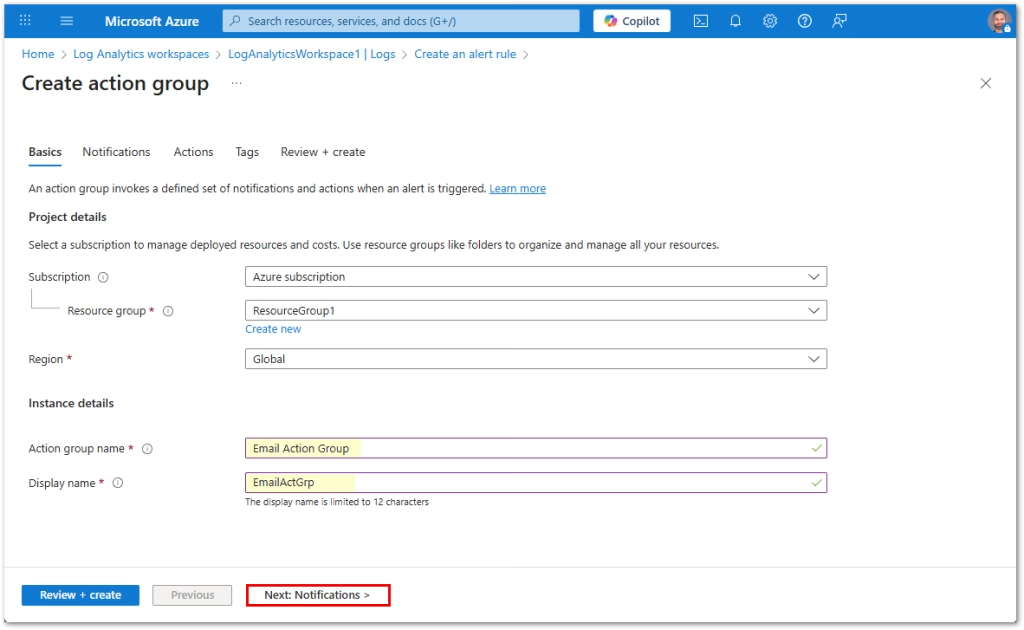
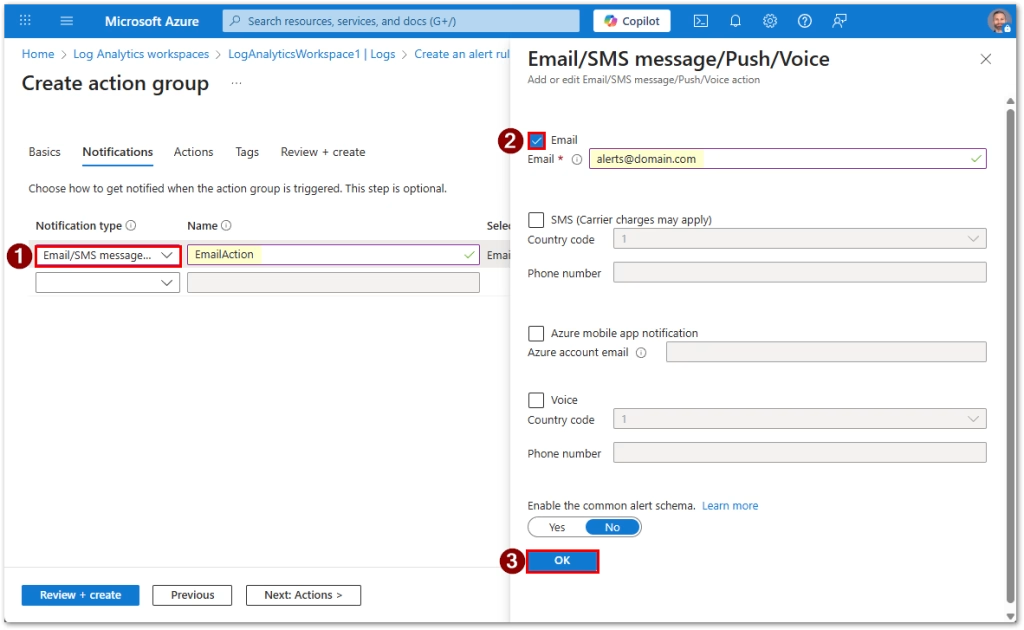
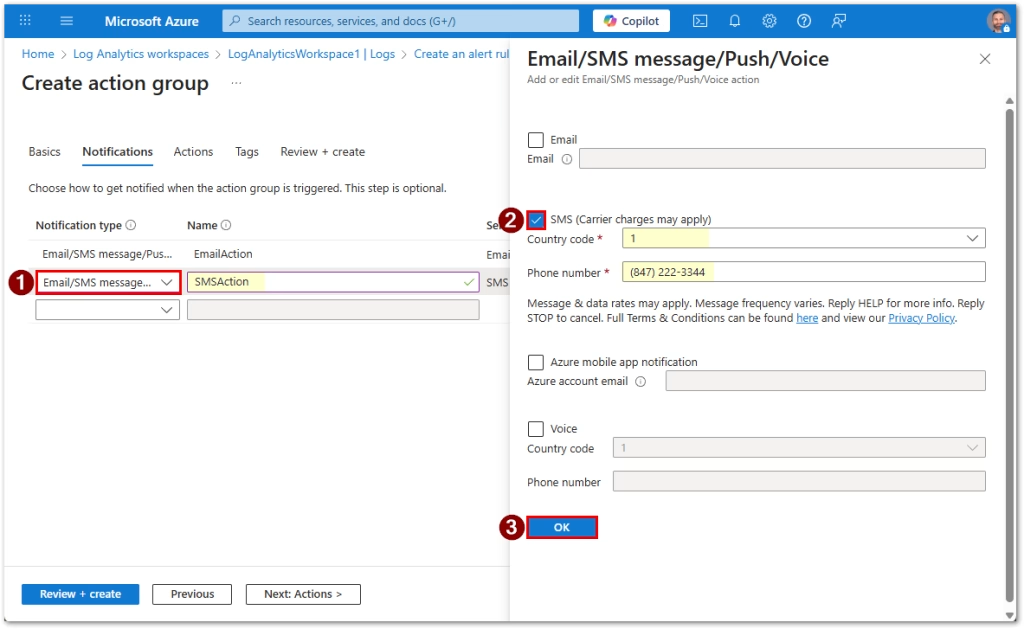
Create or select an action group with your desired notification channel:
- SMS
- Teams (via Logic App or webhook)
- ITSM connector
- Webhook or automation
For the purpose of this guide, I’m creating Email and SMS notifications only.
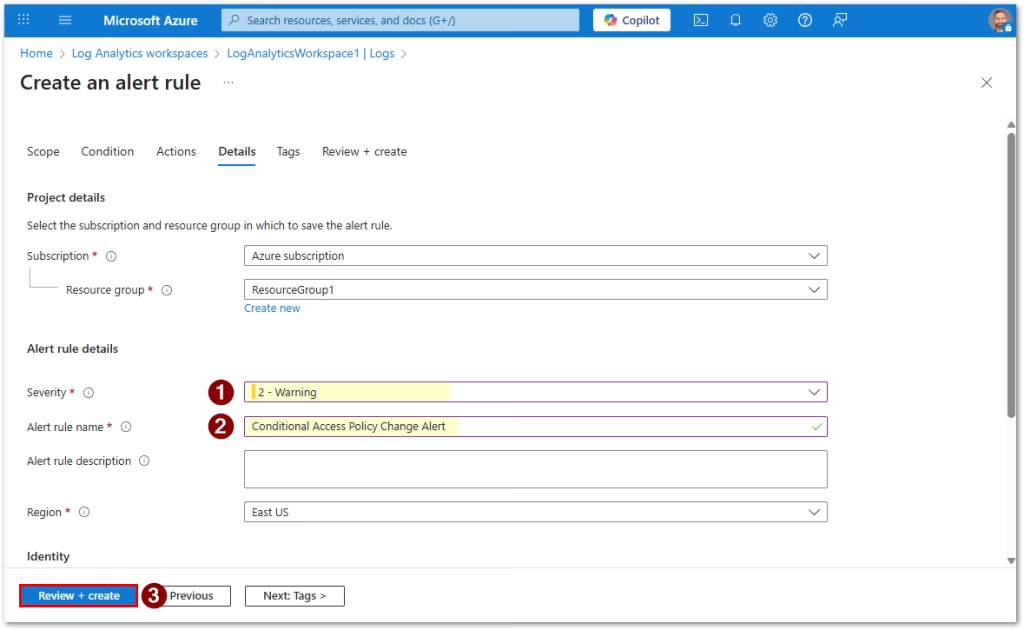
Alert Rule Details
- Name: Conditional Access Policy Change Alert
- Description: Alerts whenever a CA policy is added, modified, or deleted
- Severity: 2 – Warning
- Enable alert rule upon creation: Yes
- Review and create
- Then click create
Step 4: Test the Alert
Make a Safe Change
- Open a test Conditional Access policy
- Modify something harmless such as the name, description, or Report Only toggle
- Save
Validate in Logs
Run:
AuditLogs
| where TimeGenerated > ago(30m)
| where OperationName in (
    "Add conditional access policy",
    "Update conditional access policy",
    "Delete conditional access policy"
)
| extend PolicyName = tostring(TargetResources[0].displayName)
| extend Actor = tostring(parse_json(tostring(InitiatedBy.user)).userPrincipalName)
| order by TimeGenerated desc
You should see your test change appear.
Validate the Alert
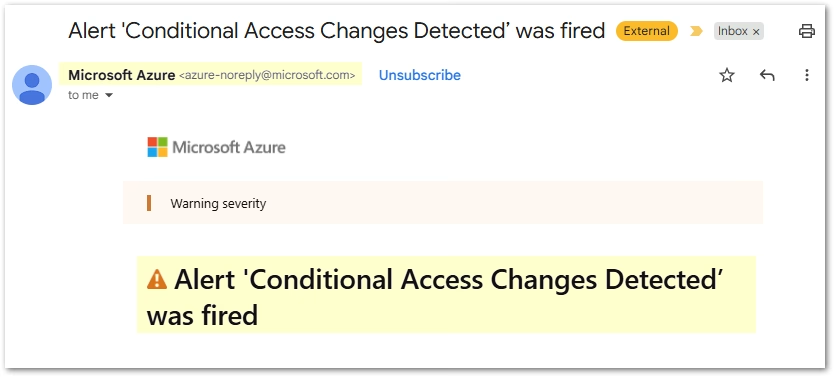
Within a few minutes (pipelines plus alert evaluation), you should receive your alert through your Action Group via Email and SMS. See sample email alert below:
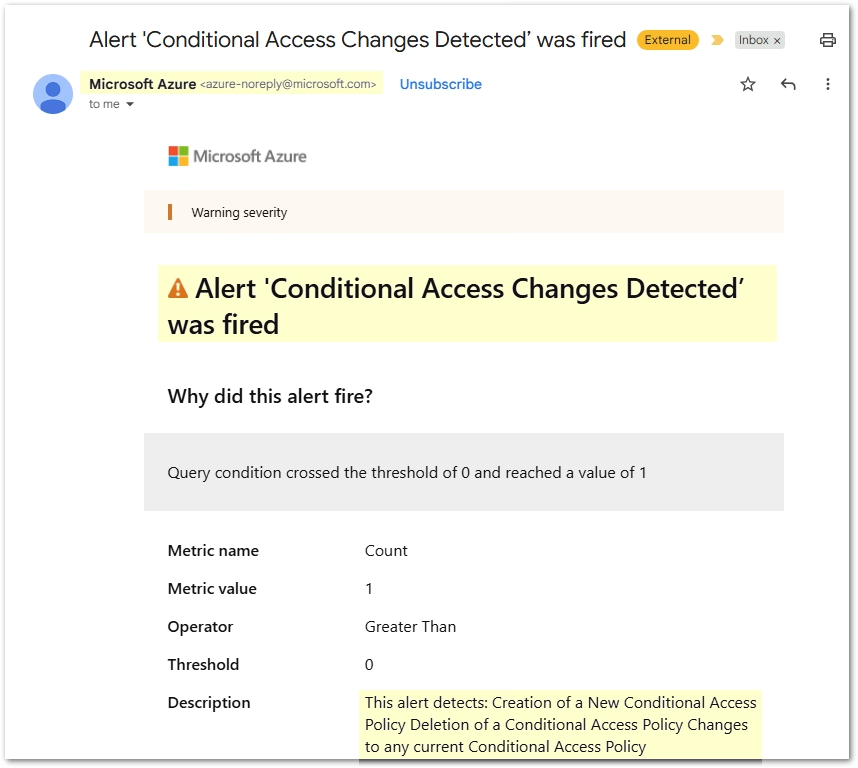
Hardening and Advanced Ideas
- Create separate alerts for Delete vs Update operations
- Only alert on changes to critical CA policies by filtering PolicyName
- Add time based filtering to detect after hours changes
- Send alerts into Sentinel or a SOAR playbook for automated investigation
- Log policy changes to a dedicated Sentinel analytic rule for correlation
Found this useful? Share with others: