Token Protection Conditional Access Policy
Introduction
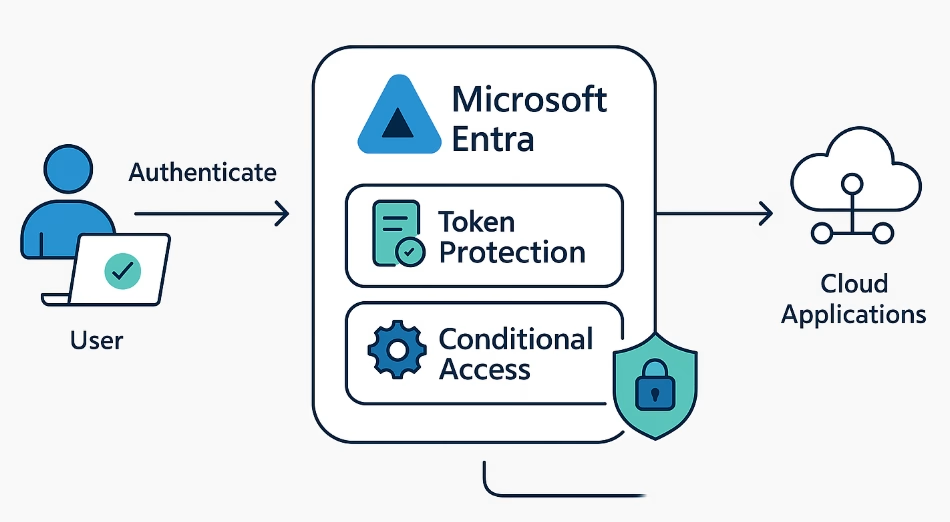
Token theft is one of the most common ways attackers bypass authentication. Even if credentials are protected, an attacker who steals a valid token can replay it from another device or location. Microsoft Entra ID now offers Token Protection for Conditional Access to stop token replay attacks by binding tokens to the device where authentication occurs. This adds a strong layer of defense and aligns with Zero Trust principles.
This guide explains what Token Protection is, how it works, deployment considerations, and best practices for securing your environment.
What Token Protection Does
Token Protection ensures that authentication tokens include device specific claims. If an attacker copies a token to another device or session, the token will not validate. This prevents session hijacking, pass the cookie attacks, and usage of stolen refresh tokens.
When enabled through Conditional Access, Token Protection binds the token to the device at issuance. Supported applications and browsers then validate the device binding on each request.
How It Works
Token Protection uses three core elements:
- Device identity
The token includes the device ID and attestation details. The device must be registered or joined to Entra. - Client capability
Supported browsers or applications must understand and enforce device binding. Edge and Chrome with the Entra extension support this today. - Conditional Access enforcement
A Conditional Access policy triggers token binding for supported apps. When the device or client does not meet requirements, Entra ID denies issuance of a bound token.
When a protected token is replayed from another device, the application compares the device information in the token with the current device. If they do not match, the request fails.
Supported Scenarios
Token Protection currently supports:
- Office 365 Exchange Online
- Office 365 SharePoint Online
- Microsoft Teams Services
- Azure Virtual Desktop
- Windows 365
Microsoft continues to expand support across workloads and clients.
Why You Should Use It
Token Protection significantly reduces the risk of:
- Pass the cookie attacks
- Token replay
- Session hijacking
- Adversary in the middle attacks that steal tokens during transport
This is especially important for privileged accounts, administrators, security teams, and high risk users.
Token Protection also helps enforce that authentication happens on devices that meet your compliance or policy expectations.
How to Enable Token Protection in Conditional Access
Use the following steps:
- Entra ID
- Navigate to Identity and then Conditional Access
- Navigate to Identity and then Conditional Access
- Name
- Create a new Conditional Access policy
- Give it a clear name such as “Token Protection for Admins”.
- Users or agents
- Start with a pilot group before applying to the entire organization.
- Start with a pilot group before applying to the entire organization.
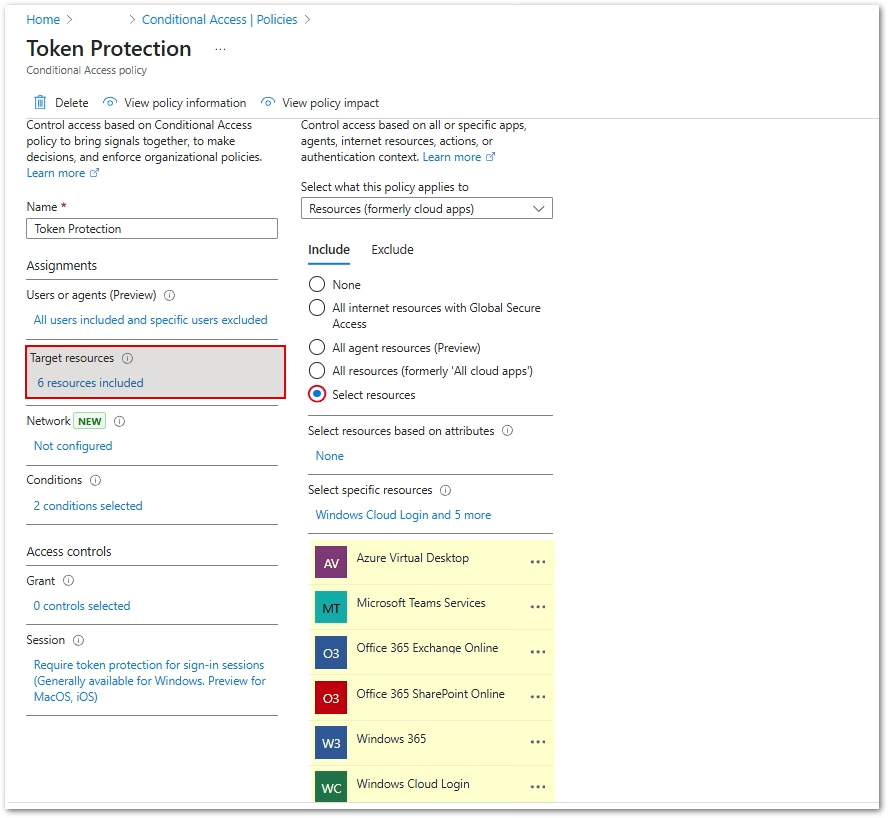
- Target resources
Select ONLY the following Resources/Cloud Apps:- Office 365 Exchange Online
- Office 365 SharePoint Online
- Microsoft Teams Services
- Azure Virtual Desktop
- Windows 365
- Windows Cloud Login
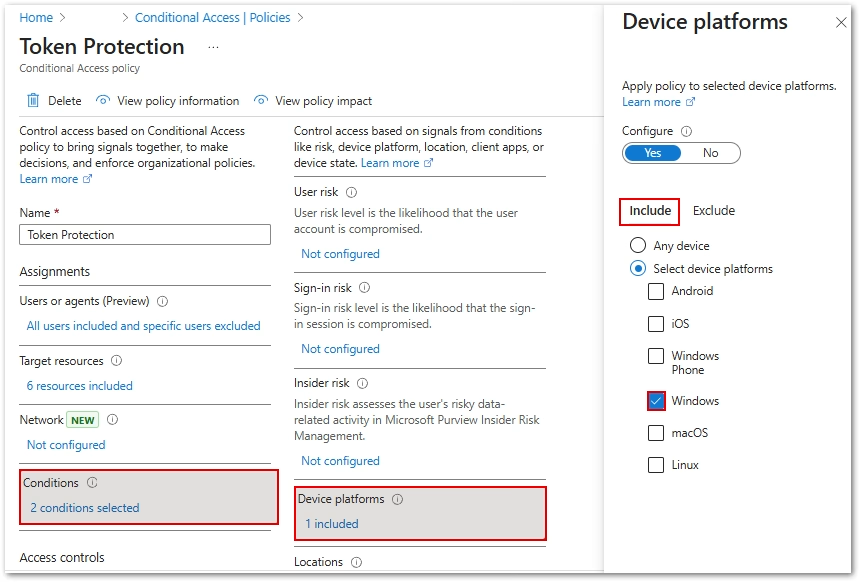
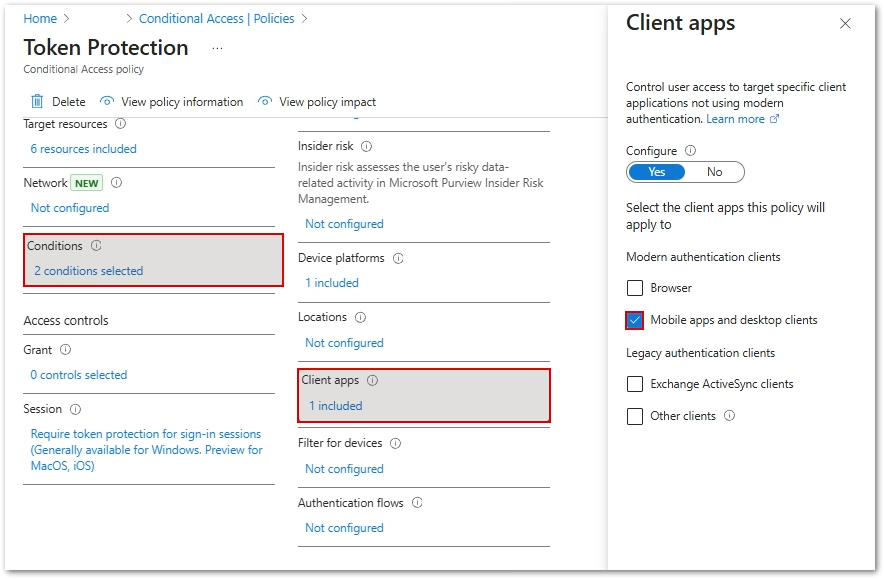
- Conditions
Select ONLY the following Client Apps:- Under Client Apps, set Configure to yes. ONLY select Mobile apps and desktop clients. Leave other items unchecked
- Under Device Platforms, set Configure to Yes. ONLY select Windows. Leave other items unchecked.
- Access Controls
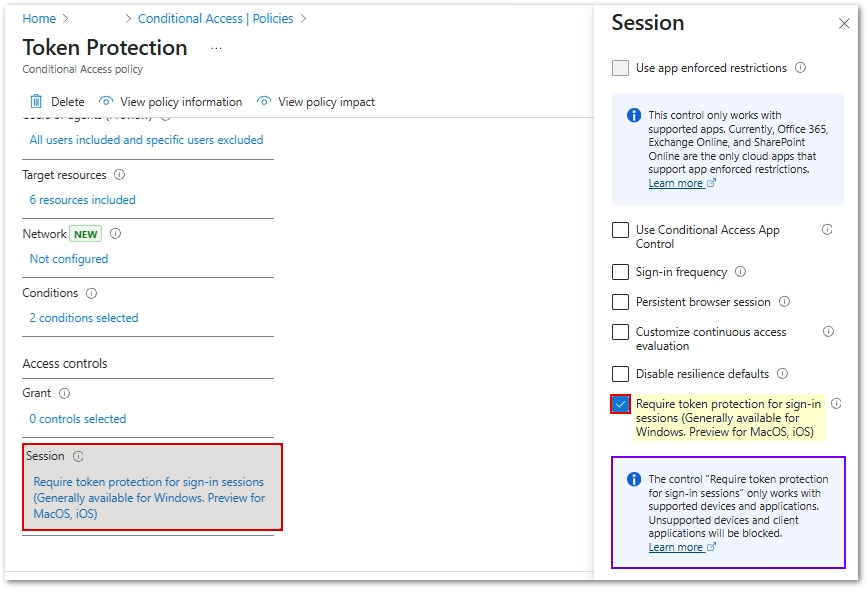
- Under Session, select Require token protection for sign-in sessions
- Under Session, select Require token protection for sign-in sessions
- Save
- Enable and test
- Put the policy in Report only or targeted scope first to validate impact.
Deployment Tips
- Pilot with privileged and security sensitive roles.
- Ensure browsers have the Entra extension when needed.
- Validate that your endpoint management solution supports device identity.
- Monitor sign in logs and Conditional Access insights for failures.
- Roll out gradually to avoid blocking older application flows.
Common Issues
Missing device registration
Token Protection relies on strong device identity. Hybrid joined or Intune managed devices provide the most consistent results.
Unsupported client
Legacy browsers or custom applications may not support token binding. Review Microsoft support documentation to confirm compatibility.
Conflicts with session lifetime settings
Some advanced session controls may interact with token binding. Keep session policies simple during rollout.
Best Practices
- Apply Token Protection to administrator accounts early.
- Pair it with phishing resistant MFA such as Windows Hello for Business or FIDO2.
- Use Defender for Identity and Defender for Cloud Apps to monitor token anomalies.
- Document exceptions for legacy systems.
- Add Token Protection requirements into your Zero Trust baseline and governance policies.
Summary
Token Protection for Conditional Access closes one of the biggest gaps in identity security by preventing attackers from replaying stolen tokens. It is lightweight, powerful, and increasingly supported across modern applications. As organizations move toward full Zero Trust adoption, Token Protection should be a required control in any modern identity security strategy.
Found this useful? Share with others: