Baseline Security Mode (BSM) in Microsoft 365
BSM is a secure-by-default, opt-in feature introduced at Microsoft Ignite 2025, now generally available. It simplifies tenant hardening by applying 18 initial settings across Authentication, File protection, and Room devices spanning Exchange, Teams, SharePoint, OneDrive, and Entra while continuously evolving with future service expansions.
Who Can Use BSM
- Requires a Microsoft 365 subscription, available across all plans.
- Configuration rights limited to Global or Security admins; scoped roles (e.g., Exchange, Teams, SharePoint Admins) can view and configure relevant domain settings.
How to Enable BSM
- Access the Admin Portal
- Sign in to the Microsoft 365 admin center as a Global or Security admin.
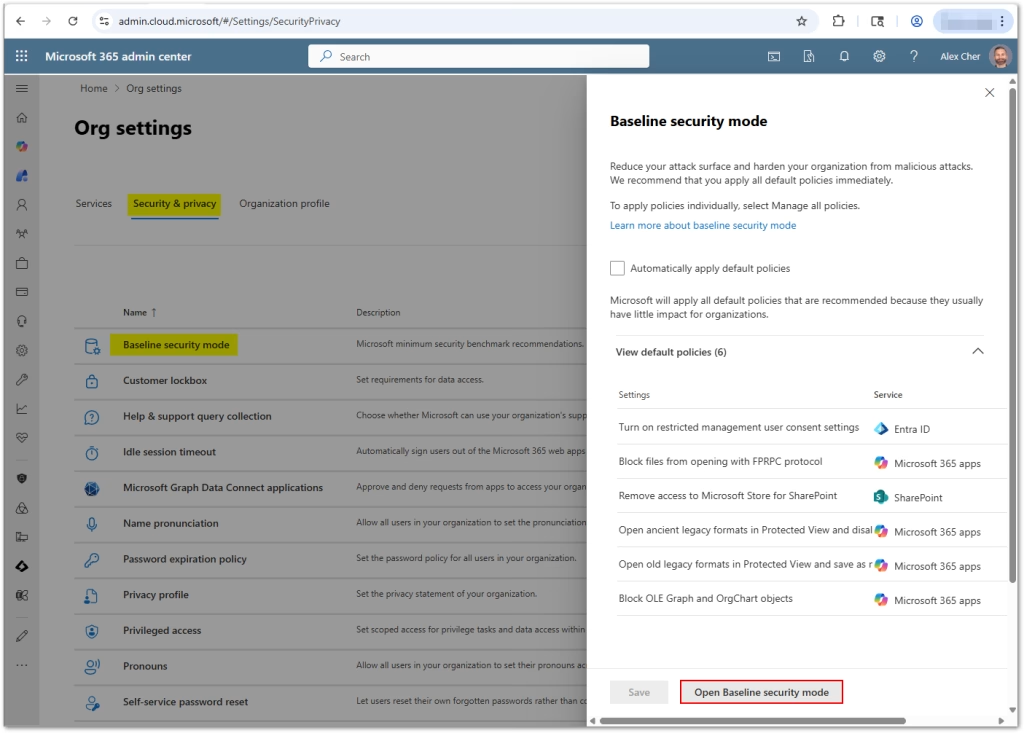
- Navigate to Settings → Org Settings → Security & privacy → Baseline Security Mode.
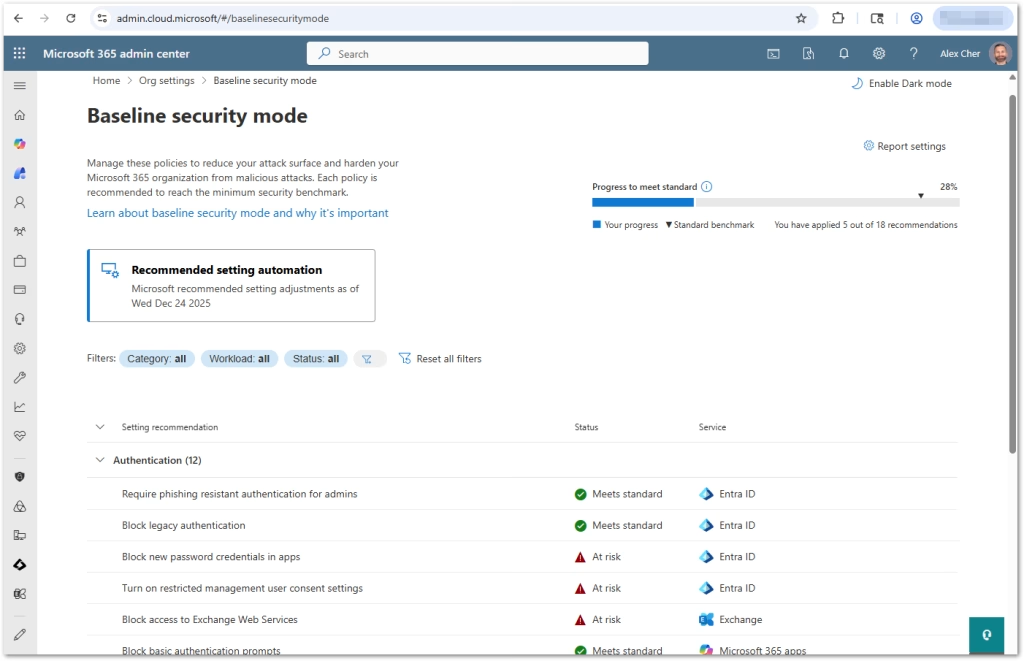
- Click on Open Baseline Security Mode button to open the BSM recommendations page.
- Opt-in to BSM
- Choose Apply default policies for the 11 low-impact settings.
- For the 7 potentially disruptive settings:
- Use Simulation mode to assess impact for up to 24 hours.
- If safe, enable; otherwise, exclude users/apps as needed.
- Monitor and Manage
- Access dashboards for telemetry, CSV reporting, and manual overrides.
- Roll out changes gradually and revisit periodically.
Generate Impact Report Before Policy Changes
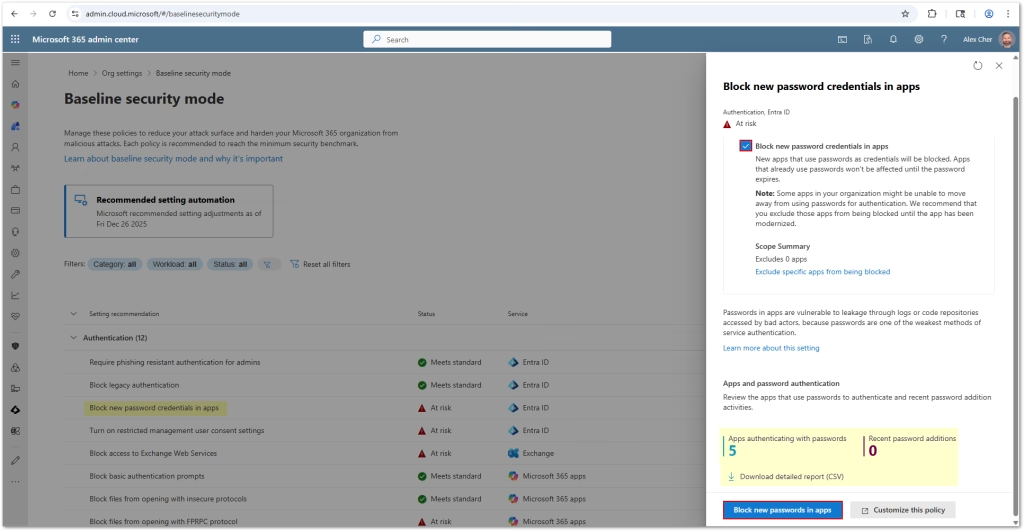
When enabling a potentially disruptive BSM policy, you can generate an impact report to identify which users, groups, or applications would be affected before enforcement.
Steps to Generate an Impact Report:
- Navigate to Settings → Org Settings → Security & privacy → Baseline Security Mode.
- For each non-default policy, select Generate report.
- Review the report, which includes:
- Affected users and apps
- Dependency details (protocols, conditional access policies)
- Status tags like “At risk” or “Meets standards”
BSM Settings by Category
Authentication
- Require phishing-resistant MFA for admins
- Block legacy authentication protocols
- Block basic authentication prompts
- Block legacy browser auth to SPO/OD (RPS)
- Block legacy client auth to SPO/OD (IDCRL)
- Block adding new password credentials to applications
- Restrict end-user consent to trusted apps
Files (OneDrive, SharePoint, Office Apps)
- Block insecure file protocols (HTTP/FTP)
- Block FrontPage RPC protocol
- Open ancient legacy formats in Protected View (no edit)
- Open older legacy formats in Protected View (with edit)
- Block ActiveX controls in Office documents
- Block OLE Graph and OrgChart objects
- Block DDE server launches in Excel
- Block Microsoft Publisher
Room Devices (Teams)
- Block resource account sign-in to M365 apps
- Only allow compliant, managed devices for resource accounts
- Prevent resource accounts accessing M365 files
Recommended Deployment Workflow
- Pilot low-impact defaults to distribute 11 safe policies quickly.
- Run simulations on riskier settings, analyzing impact telemetry.
- Address dependencies, consult app or user owners before enabling.
- Enable remaining policies, or exempt entities with a watchlist.
- Review consistently, leveraging updates as Microsoft extends BSM across more services.
Why Implement BSM?
- Reduces attack surface by disabling legacy auth, file exploits, and unsecured protocols.
- Streamlines compliance with secure-by-default posture and telemetry analytics.
- Minimizes disruption through targeted controls and staged rollout.
- Evolves continuously, expanding into Purview, Intune, Dynamics 365, Azure, etc.
Found this useful? Share with others:








people found this article helpful. What about you?