Microsoft Passkeys Explained: Device-Bound vs. Synced
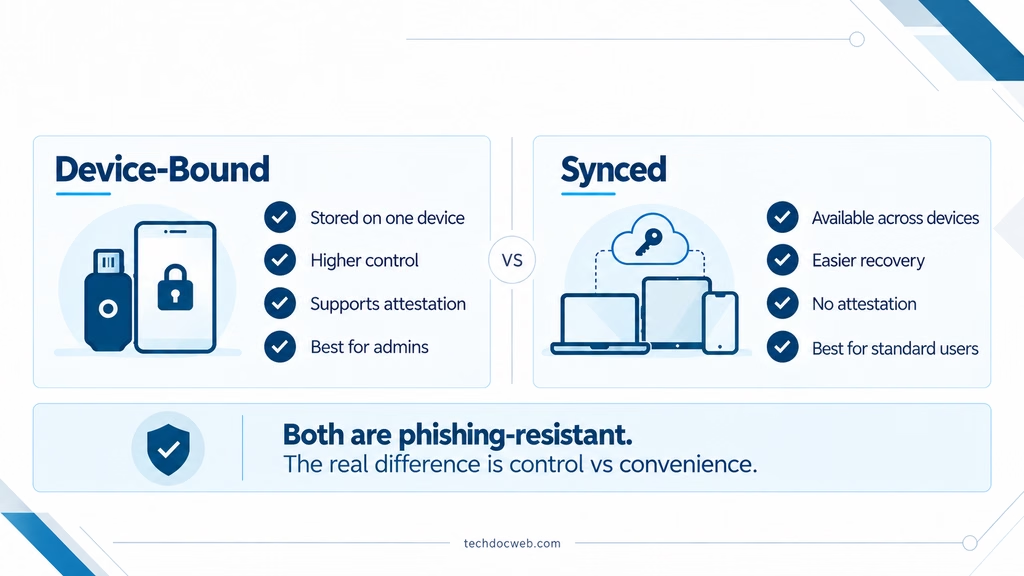
Understanding the security differences, practical use cases, and how to choose the right passkey for your organization.
Overview
Passkeys are quickly becoming the preferred method for passwordless authentication, and Microsoft is making it easier for organizations to adopt them through Microsoft Entra ID.
But not all passkeys are created equal.
If you’ve been exploring passkeys in Microsoft Entra ID, you’ve probably come across two options: Device-bound passkeys and Synced passkeys.
Both provide phishing-resistant authentication, but there are important differences in how credentials are stored, protected, and managed.
So which one should you use? Does allowing synced passkeys introduce additional security risks? And should administrators be treated differently from regular users?
In this article, I’ll break down the differences, explain how they work, and share some practical recommendations for deploying passkeys in Microsoft Entra ID.
1. What Are Passkeys?
Passkeys are a passwordless authentication method built on FIDO2 standards that uses public-key cryptography instead of traditional passwords.
When a passkey is registered, two cryptographic keys are created:
- Private key: Stored securely on the user’s device or protected by a passkey provider.
- Public key: Registered with the service, such as Microsoft Entra ID.
During authentication, the private key signs a cryptographic challenge issued by the service. The service validates the response using the registered public key.
The user typically unlocks the passkey using a fingerprint, facial recognition, or device PIN.
Unlike passwords and traditional MFA methods such as SMS or push notifications, passkeys are resistant to phishing because authentication is cryptographically bound to the legitimate website or application.
Even if a user visits a fake Microsoft sign-in page, the passkey cannot simply be used to authenticate to that malicious website.
Important: Microsoft Authenticator push notifications and Microsoft Authenticator passkeys are not the same thing. Traditional push-based MFA is still susceptible to certain phishing attacks, while FIDO2 passkeys provide phishing resistance.
2. Device-Bound Passkeys
A device-bound passkey is a FIDO2 credential whose private key is created and stored on a specific physical device.
The private key cannot be exported or synchronized to another device.
Common examples include:
- FIDO2 hardware security keys, such as YubiKey.
- Device-bound passkeys stored in Microsoft Authenticator.
- Microsoft Entra passkeys stored locally using Windows Hello on supported Windows devices.
For example, if you register a device-bound passkey using Microsoft Authenticator on your iPhone, that credential remains tied to that particular device.
If you replace or lose the phone, the passkey does not automatically transfer to your new device.
You would need to register a new passkey using an approved recovery or onboarding method.
Advantages
- Private keys remain tied to the original device.
- Stronger control over where authentication credentials reside.
- Supports authenticator attestation when the device and provider meet the requirements.
- Well suited for privileged accounts and sensitive environments.
- Reduces exposure associated with credential synchronization and cloud recovery.
Considerations
- Users may need to register multiple devices or security keys.
- Device replacement and recovery require additional planning.
- Hardware security keys introduce purchasing and management costs.
- Losing the only registered authenticator can result in account lockout.
Device-bound passkeys are particularly useful when the organization needs stronger assurance about the authenticator being used.
3. Synced Passkeys
Synced passkeys use the same FIDO2 authentication principles but handle private key storage differently.
Instead of remaining permanently bound to one physical device, the private key is encrypted and synchronized through a supported credential provider.
Examples include:
- Apple Passwords / iCloud Keychain.
- Google Password Manager.
- Other supported passkey providers, depending on the platform and Microsoft Entra ID compatibility.
For example, a user creates a passkey on an iPhone and saves it to Apple Passwords.
That passkey can become available on the user’s other compatible Apple devices through iCloud Keychain.
If the user replaces their iPhone, the passkey can be restored through the credential provider without needing to register a completely new credential in Microsoft Entra ID.
The key advantage is convenience.
Users can authenticate across multiple devices without separately registering a device-bound credential on every device.
Advantages
- Easier adoption for end users.
- Passkeys can be available across multiple devices.
- Simpler device replacement and recovery.
- Reduced dependency on physical security keys.
- Lower deployment and support overhead for large organizations.
Considerations
- Private keys are synchronized through a third-party credential provider.
- Security depends partly on the provider’s account protection and recovery mechanisms.
- Organizations have less direct control over the devices receiving synchronized credentials.
- Synced passkeys do not support authenticator attestation in Microsoft Entra ID.
This last point is particularly important for organizations with strict security or compliance requirements.
4. Device-Bound vs. Synced Passkeys: Comparison
| Feature | Device-Bound | Synced |
|---|---|---|
| Phishing-resistant | Yes | Yes |
| FIDO2 authentication | Yes | Yes |
| Private key storage | Single physical device | Encrypted and synchronized through provider |
| Available on multiple devices | Requires separate registration | Yes, through supported provider |
| Cloud synchronization | No | Yes |
| Authenticator attestation | Supported on eligible authenticators | Not supported |
| Device replacement | New registration typically required | Can restore through provider |
| Administrative overhead | Higher | Lower |
| Best suited for | Administrators, privileged accounts, regulated environments | Standard users, general workforce |
The main distinction is not phishing resistance. Both passkey types provide it.
The difference is how the private key is protected, whether it can move between devices, and how much assurance the organization has about the authenticator.
5. Why Authenticator Attestation Matters
Authenticator attestation is one of the more important security considerations when choosing between device-bound and synced passkeys.
Attestation allows Microsoft Entra ID to verify information about the authenticator during passkey registration, including its identity and supported security characteristics.
This helps organizations establish confidence that users are registering approved authenticators.
For example, an organization may want privileged accounts to use only approved FIDO2 hardware security keys.
With attestation enforcement and appropriate authenticator restrictions, administrators can establish a stronger level of assurance about the devices used to register passkeys.
Synced passkeys do not support attestation in Microsoft Entra ID.
An important distinction: Device-bound does not automatically mean attested. The authenticator must support attestation and satisfy Microsoft Entra ID’s validation requirements.
Also, attestation is evaluated during registration. Enabling it later does not automatically invalidate previously registered, unattested passkeys.
This is something administrators should account for when tightening an existing passkey deployment.
6. Configuring Passkeys in Microsoft Entra ID
Microsoft Entra ID supports passkey profiles, allowing organizations to configure different passkey requirements for different user groups.
Instead of applying the same settings across the entire tenant, administrators can create profiles based on security requirements.
Navigate to:
Microsoft Entra admin center → Entra ID → Authentication methods → Policies → Passkey (FIDO2)
From the configuration settings, administrators can enable passkey profiles and configure requirements such as:
- Allowed passkey types: Device-bound and/or Synced.
- Enforce attestation.
- Authenticator restrictions using AAGUIDs.
- Targeted user groups.
Example: Privileged Users
For administrators and other highly privileged accounts, I would generally recommend:
| Setting | Recommendation |
|---|---|
| Passkey type | Device-bound |
| Enforce attestation | Yes |
| Key restrictions | Approved authenticators, where appropriate |
| Target users | Privileged administrators |
| Authentication method | FIDO2 security key or supported device-bound authenticator |
This provides stronger assurance around registered authenticators and reduces reliance on third-party credential synchronization.
Example: Standard Users
For most regular users, synced passkeys may be a more practical option.
| Setting | Recommendation |
|---|---|
| Passkey type | Device-bound and Synced |
| Enforce attestation | No |
| Key restrictions | Based on organizational requirements |
| Target users | Standard workforce |
| Authentication method | Supported platform passkey providers |
This approach allows organizations to improve phishing resistance while minimizing the complexity of managing hardware authenticators for every employee.
Note: Enforcing attestation excludes synced passkeys. Also, allowing both passkey types without attestation does not provide the same device provenance assurance as an attested device-bound credential.
7. Don’t Forget Conditional Access
Enabling passkeys in the Authentication methods policy is only part of the configuration.
Organizations should also consider using Conditional Access authentication strengths to require phishing-resistant authentication for sensitive resources.
For example:
Microsoft Entra admin center → Entra ID → Conditional Access → Authentication strengths
Microsoft provides a built-in Phishing-resistant MFA authentication strength, or administrators can create custom authentication strengths to restrict supported authentication methods and, where appropriate, specific FIDO2 authenticators.
The distinction is important:
- Passkey profiles control which passkeys users can register and use.
- Conditional Access authentication strengths control which authentication methods can satisfy access requirements.
For privileged accounts, a custom authentication strength combined with approved authenticator restrictions may provide more granular control than simply requiring phishing-resistant MFA.
Before enforcement, validate user registration, recovery options, existing passkeys, and potential access dependencies. Pilot changes with a small group before expanding to the rest of the organization.
8. Which Passkey Should You Choose?
My recommendation is to avoid treating passkeys as a one-size-fits-all authentication method.
Both options improve security compared to traditional passwords and phishable MFA methods.
However, the right choice depends on the account’s privileges, the organization’s security requirements, and how much control is needed over credential storage.
For most organizations, I would approach it this way:
Privileged accounts: Use device-bound passkeys with attestation where supported. FIDO2 security keys are a strong choice for administrative and emergency-access accounts.
Standard users: Allow synced passkeys where appropriate. They provide phishing resistance while making registration, device replacement, and everyday authentication easier.
Sensitive or regulated environments: Evaluate device-bound passkeys, authenticator attestation, approved authenticator models, and recovery procedures against your security and compliance requirements.
Remember that account recovery and alternative sign-in methods are also part of the overall security posture. Requiring a strong passkey provides limited benefit if users can easily fall back to weaker authentication methods.
Summary
Passkeys represent a significant improvement over traditional password-based authentication, but understanding the differences between device-bound and synced credentials is important when designing an enterprise authentication strategy.
Device-bound passkeys provide stronger control over credential storage and can support attestation, making them particularly useful for privileged accounts and high-security environments.
Synced passkeys offer the same fundamental phishing-resistant authentication benefits while simplifying deployment, recovery, and day-to-day usability.
For Microsoft Entra ID administrators, the goal should be to balance security with usability while applying stronger authentication requirements to accounts that present greater organizational risk.