Deploy the New Defender for Identity Sensor 3.x
Microsoft recently introduced Defender for Identity Sensor 3.x, which significantly changes how Defender for Identity is deployed to supported domain controllers.
With the classic Defender for Identity 2.x sensor, administrators downloaded and installed a separate sensor package on each server. With Sensor 3.x, the Defender for Identity functionality is integrated with the Microsoft Defender for Endpoint platform and supported Windows Server components.
Instead of downloading the traditional Defender for Identity installer, eligible domain controllers can now be activated directly from the Microsoft Defender portal.
In this guide, we’ll look at the requirements for Defender for Identity Sensor 3.x and how to activate eligible domain controllers both manually and automatically.
Defender for Identity Sensor 3.x Requirements
Before activating the new sensor, make sure the domain controller meets Microsoft’s requirements.
The server must:
- Run Windows Server 2019 or later
- Have the July 2026 or later Windows Server cumulative update
- Have Microsoft Defender for Endpoint deployed and onboarded
- Not already have the Defender for Identity Sensor 2.x installed
The Defender for Endpoint component must be fully onboarded on the server. An endpoint-only deployment that doesn’t meet the Defender for Endpoint onboarding requirements isn’t sufficient.
Sensor 3.x supports domain controllers, including domain controllers that also host:
- Active Directory Federation Services (AD FS)
- Active Directory Certificate Services (AD CS)
- Microsoft Entra Connect
If AD FS, AD CS, or Microsoft Entra Connect is installed on a server that isn’t a domain controller, Microsoft currently requires the classic Defender for Identity Sensor 2.x.
Test Defender for Identity Readiness
Microsoft provides the Test-MdiReadiness.ps1 PowerShell script to help determine whether servers meet Defender for Identity prerequisites.
The script can also be accessed from the Microsoft Defender portal.
Navigate to: Identities → Tools
Running the readiness assessment before activating Sensor 3.x is especially useful in larger environments where domain controllers may be running different operating system versions, patch levels, or Defender configurations.
Sensor 3.x Doesn’t Use the Classic Installer
One of the biggest differences with Defender for Identity Sensor 3.x is the deployment process.
With Sensor 2.x, administrators typically downloaded the Defender for Identity sensor installation package and installed it directly on each domain controller.
Sensor 3.x eliminates that deployment process for eligible servers.
Once the domain controller has the required Windows updates and is onboarded to Microsoft Defender for Endpoint, Defender for Identity can identify the server as an eligible sensor candidate.
The sensor can then be activated directly through the Microsoft Defender portal.
Review Eligible Defender for Identity Servers
To review servers detected by Defender for Identity:
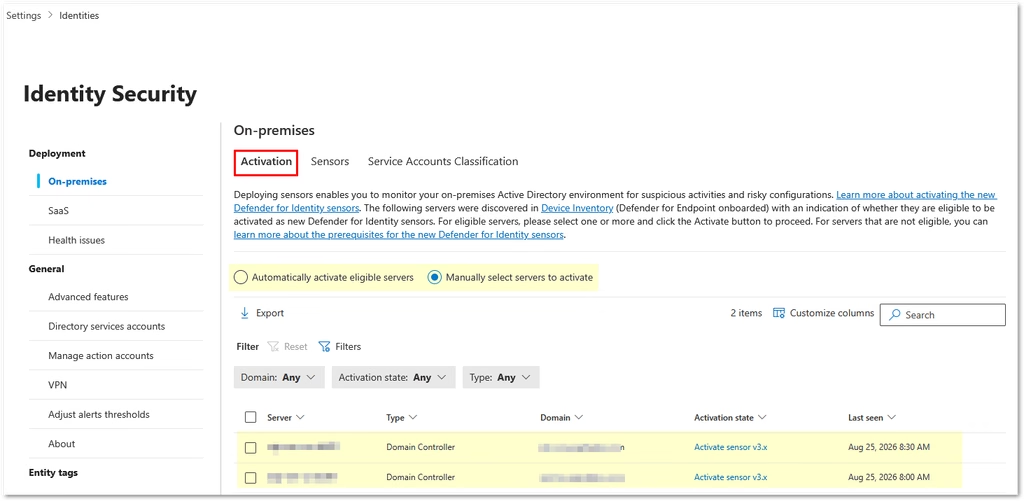
Navigate to: Microsoft Defender → System → Settings → Identities → Activation
The Activation page displays servers detected from the Microsoft Defender device inventory.
Defender for Identity evaluates each server and identifies what needs to happen before the server can be protected.
You may see several activation states:
| Activation State | Meaning |
|---|---|
| Activate new sensor | The domain controller is eligible for Sensor 3.x and is already onboarded to Defender for Endpoint |
| Install classic sensor | The server requires the classic Defender for Identity Sensor 2.x |
| OS upgrade is required | The domain controller is running an operating system that doesn’t support Sensor 3.x |
Servers displaying Activate new sensor can be activated using the new Defender for Identity Sensor 3.x deployment method.
From here, there are two primary approaches:
- Manually activate selected domain controllers
- Automatically activate eligible domain controllers
Option 1: Manually Activate Defender for Identity Sensor 3.x
Manual activation gives administrators direct control over which domain controllers receive the new sensor.
This is a good option when initially deploying Sensor 3.x or testing the new sensor with a limited number of domain controllers.
Navigate to: Microsoft Defender → System → Settings → Identities → Activation
Locate a domain controller with the following status:
Activation State: Activate new sensor
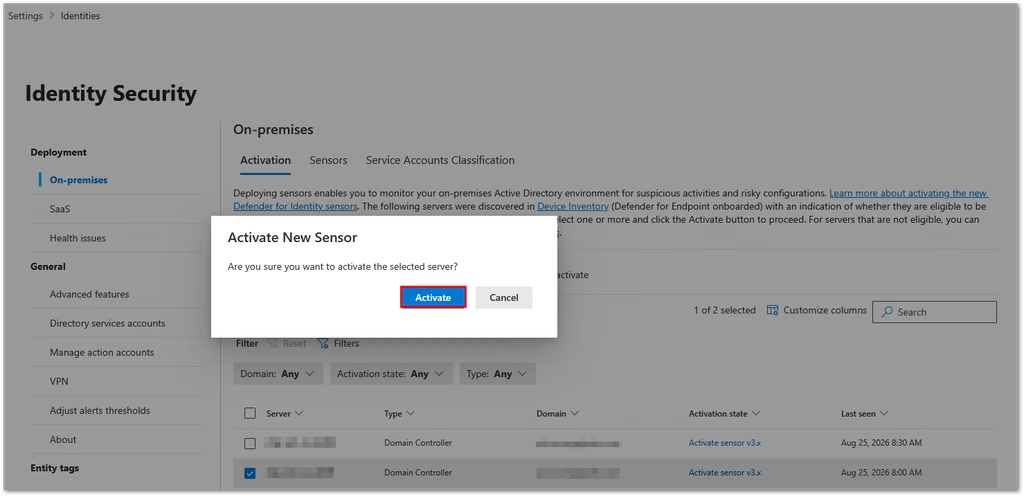
Select the domain controller and click: Activate
Confirm the activation when prompted.
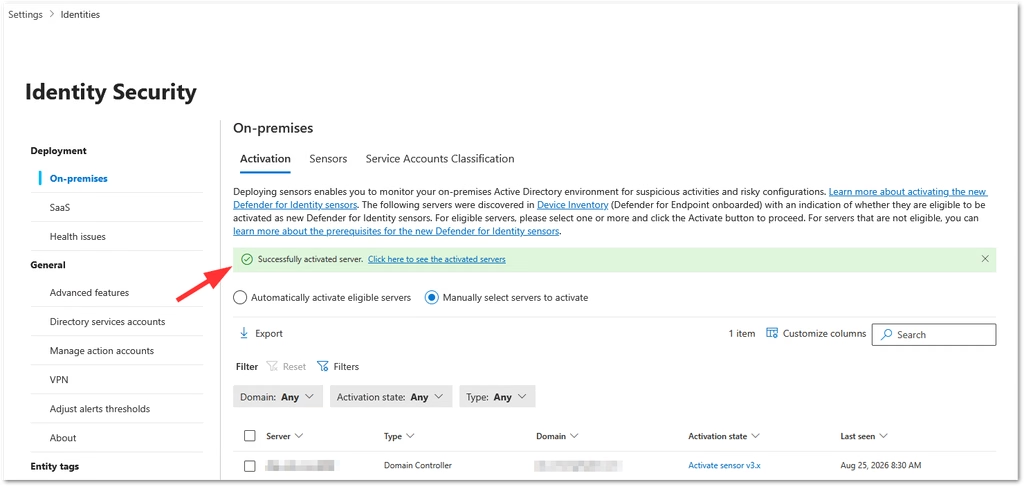
Once activation completes, Microsoft Defender displays a success notification.
You can then select the link in the notification to view the onboarded server and its sensor health.
This method can also be used to activate multiple eligible domain controllers.
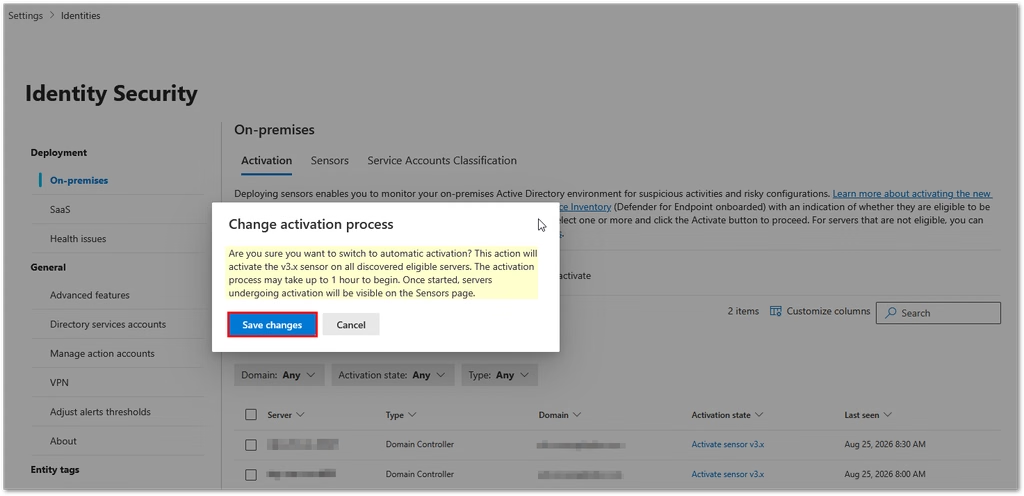
Option 2: Automatically Activate Eligible Domain Controllers
Defender for Identity can also automatically activate Sensor 3.x on eligible domain controllers.
With automatic activation enabled, Defender for Identity activates supported domain controllers as soon as they’re discovered and meet the necessary requirements.
This means administrators don’t have to periodically check the Activation page and manually activate newly deployed domain controllers.
A typical automated deployment workflow becomes:
Deploy Windows Server → Promote to Domain Controller → Onboard to Defender for Endpoint → Defender for Identity detects server → Sensor 3.x activates automatically
Automatic activation is particularly useful in larger environments where domain controllers are deployed or replaced regularly.
It also helps ensure that new domain controllers don’t remain without Defender for Identity coverage simply because someone forgot to manually activate the sensor.
For organizations with standardized domain controller configurations, automatic activation makes Defender for Identity protection part of the normal server onboarding process.
Manual vs. Automatic Activation
Both deployment methods have valid use cases.
| Method | Best Use |
| Manual activation | Pilot deployments, testing, change-controlled environments |
| Automatic activation | Standardized production environments |
| Microsoft Graph activation | Automation, scripting, and centralized security management |
A practical rollout strategy is to start manually.
For example:
- Activate one or two domain controllers manually.
- Confirm the sensors are healthy.
- Verify identity telemetry is being collected.
- Confirm Windows auditing is configured correctly.
- Activate the remaining domain controllers.
- Enable automatic activation for future eligible servers.
This provides some control during the initial deployment while still allowing future domain controllers to be protected automatically.
Automate Sensor Activation with Microsoft Graph
Organizations that want additional automation can also manage Defender for Identity Sensor 3.x activation using the Microsoft Graph API.
Microsoft Graph can be used to:
- List servers eligible for Sensor 3.x
- Retrieve sensor candidate information
- Activate specific servers
- Configure automatic sensor activation
List Eligible Sensor Candidates
The following Microsoft Graph request retrieves Defender for Identity sensor candidates:
GET https://graph.microsoft.com/v1.0/security/identities/sensorCandidatesThe response includes information such as:
- Server ID
- Computer DNS name
- Domain name
- Defender client version
- Last seen date and time
The least privileged permission required to read this information is:
SecurityIdentitiesSensors.Read.AllFor write operations, use:
SecurityIdentitiesSensors.ReadWrite.AllManually Activate Servers with Microsoft Graph
Specific eligible servers can also be activated programmatically.
First, retrieve the server ID using the sensorCandidates API.
Then submit the server ID to the activation endpoint:
POST https://graph.microsoft.com/v1.0/security/identities/sensorCandidates/activate
Content-Type: application/json

{
    "serverIds": [
        "<Server-ID>"
    ]
}
The activation API requires:
SecurityIdentitiesSensors.ReadWrite.AllThis provides another way to integrate Defender for Identity activation into automated server deployment or security configuration processes.
Configure Automatic Activation with Microsoft Graph
Microsoft Graph can also configure whether Defender for Identity uses manual or automatic sensor activation.
The available activation modes are:
manual
automated
To configure automatic activation:
POST https://graph.microsoft.com/v1.0/security/identities/sensorCandidateActivationConfigurations
Content-Type: application/json

{
    "@odata.type": "#microsoft.graph.security.sensorCandidateActivationConfiguration",
    "activationMode": "automated"
}
To return to manual activation, change the value to:
manualThis can be useful for organizations that manage Defender configuration through automation rather than manually configuring each setting through the Defender portal.
Verify Defender for Identity Sensor Activation
After activating a domain controller, verify that the sensor is running correctly.
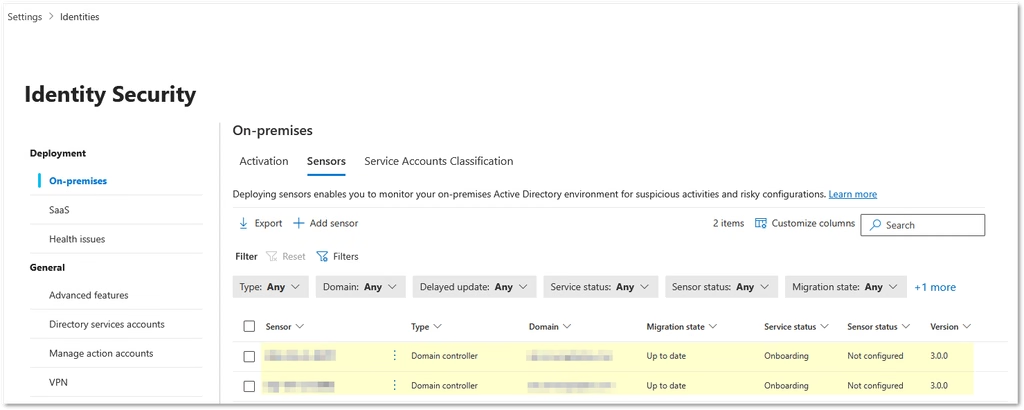
Navigate to: Microsoft Defender → System → Settings → Identities → Sensors
Confirm that the newly activated domain controller appears in the sensor inventory.
Microsoft notes that the first Sensor 3.x activation can take up to one hour before the sensor displays as Running.
Subsequent sensor activations typically appear within approximately five minutes.
Sensor 3.x activation also doesn’t require a server restart or reboot.
Configure Automatic Windows Auditing
Activating the Defender for Identity sensor is only part of the configuration.
Defender for Identity relies on Windows security events to provide many of its identity detections.
Sensor 3.x introduces another important automation capability called:
Automatic Windows auditing configuration
This setting is separate from automatic sensor activation.
To enable it navigate to: Microsoft Defender → Settings → Identities → Advanced features
Enable: Automatic Windows auditing configuration
Microsoft recommends automatic Windows auditing for Sensor 3.x deployments.
When enabled, Defender for Identity automatically checks the Windows auditing configuration and identifies missing settings.
The sensor can configure settings related to:
- Directory Services advanced auditing
- NTLM auditing
- Domain object auditing
- Windows audit policies
- AD FS auditing
- AD CS auditing
- Microsoft Entra Connect auditing
The sensor applies the settings directly to the server’s local policy and reevaluates the auditing configuration approximately every 24 hours.
If automatic auditing isn’t enabled, the required Windows auditing configuration must be configured manually or through PowerShell.
Watch for Group Policy Conflicts
There is one important consideration when using automatic Windows auditing.
The sensor configures auditing through the local system policy.
If Group Policy Objects configure conflicting audit policies, the GPO settings can override or conflict with the settings applied by Defender for Identity.
Organizations using automatic auditing should therefore review existing Domain Controller Group Policies and security baselines to make sure they don’t conflict with the settings Defender for Identity requires.
Sensor 3.x Uses LocalSystem
Another important architectural change with Defender for Identity Sensor 3.x is how the sensor interacts with Active Directory.
Sensor 2.x could use a Directory Service Account (DSA) or group Managed Service Account (gMSA) for certain operations.
Sensor 3.x instead uses the domain controller’s built-in: LocalSystem identity.
LocalSystem is used for:
- Reading Active Directory data
- Querying and resolving directory objects
- Tracking Active Directory changes
- Performing supported remediation actions
Sensor 3.x doesn’t use a DSA or gMSA for these operations.
If you’re migrating an existing Defender for Identity environment from Sensor 2.x, Microsoft recommends enabling:
Navigate to: Settings → Identities → Microsoft Defender for Identity → Manage action accounts
Select:
Automatically use the sensor’s local system account
Microsoft specifically recommends enabling this setting when any Sensor 3.x sensors exist in the environment.
RPC Auditing Is Automatically Enabled
Another recent improvement affects Defender for Identity RPC auditing.
Starting with Defender for Identity Sensor 3.0.8, released with the July 2026 sensor update, RPC auditing is automatically enabled on domain controllers when the sensor is updated.
Previously, administrators could apply tags such as:
- Unified Sensor RPC Audit
- Sensor Extended RPC Audit
These tags are no longer required to enable RPC auditing on current Sensor 3.x deployments.
If you’ve already applied one of these tags, Microsoft states that no additional action is required and the existing tag can remain in place.
Additional Sensor 3.x Considerations
There are several other differences to keep in mind before moving entirely to Sensor 3.x.
Sensor 3.x currently:
- Doesn’t support VPN integration
- Doesn’t support syslog notifications
- Has limitations when used with Azure ExpressRoute
- Requires Defender for Endpoint onboarding
- Requires Windows Server 2019 or later
- Requires the July 2026 or later Windows Server cumulative update
Microsoft also recommends configuring domain controllers running the sensor to use the High Performance power plan.
For virtual domain controllers, memory should be fully allocated to the virtual machine instead of relying on dynamic memory allocation.
Sensor 3.x limits its resource consumption to approximately:
- 30% CPU utilization
- 1.5 GB of memory
If those limits are reached, Defender for Identity can throttle event processing or restart the sensor service to protect the domain controller from excessive resource usage.
Final Thoughts
Defender for Identity Sensor 3.x makes deploying identity threat detection to modern Active Directory domain controllers considerably easier.
Instead of downloading, installing, and maintaining a separate Defender for Identity package, supported domain controllers can now be identified through the Microsoft Defender device inventory and activated directly from the Defender portal.
Administrators have several deployment options:
- Manually activate eligible domain controllers for controlled deployments.
- Automatically activate eligible domain controllers as they’re discovered.
- Use Microsoft Graph to integrate sensor activation into security automation.
Sensor 3.x also simplifies several other parts of Defender for Identity configuration by introducing automatic Windows auditing, using LocalSystem instead of separate service accounts, and automatically enabling RPC auditing.
For environments already using Microsoft Defender for Endpoint on their domain controllers, Sensor 3.x creates a much simpler path for extending Microsoft Defender protection from the endpoint to the on-premises Active Directory identity infrastructure.
Sources
- Activate the Defender for Identity sensor v3.x on a domain controller – Microsoft Learn
- Deploy the Defender for Identity sensor v3.x – Microsoft Learn
- Configure Windows event auditing – Microsoft Learn
- List sensorCandidate objects – Microsoft Graph
- sensorCandidate: activate – Microsoft Graph
- sensorCandidateActivationConfiguration resource type – Microsoft Graph
- Update sensorCandidateActivationConfiguration – Microsoft Graph
Found this useful? Share with others: