Removing Old Guest Accounts from Teams
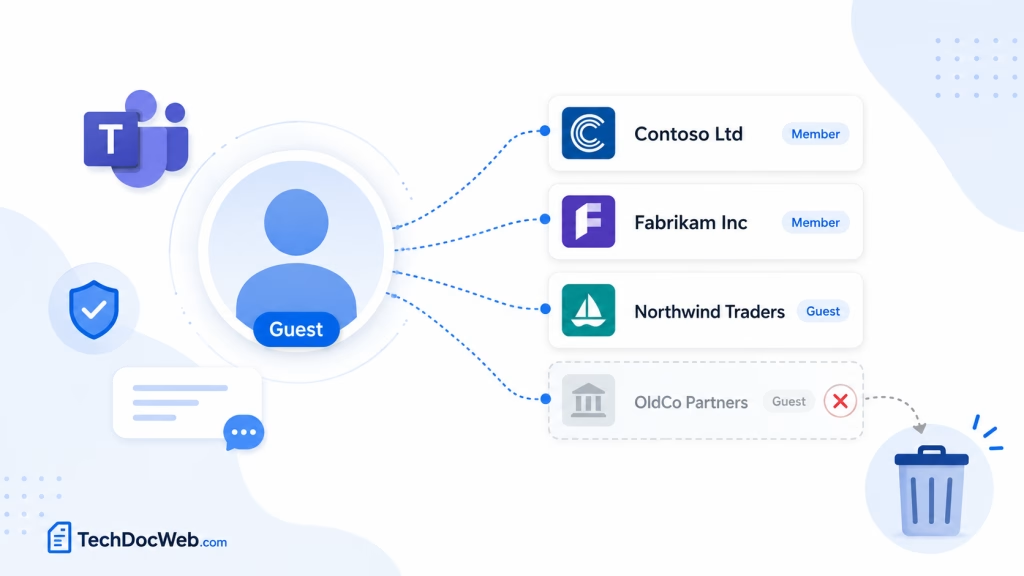
Microsoft Teams makes it easy to collaborate with external organizations using guest accounts. Over time, however, you may accumulate old guest organizations from customers, partners, previous employers, or other Microsoft 365 tenants that you no longer need access to.
These organizations may continue to appear in Microsoft Teams when switching between accounts and organizations.
Simply signing out of Teams does not remove the guest organization. The guest relationship exists in the external organization’s Microsoft Entra ID tenant, so you need to leave that organization to fully remove it from your account.
There are two easy ways to initiate the process:
- Directly from Microsoft Teams
- From the Microsoft My Account portal
Option 1: Remove the Guest Organization Directly from Teams
The latest Microsoft Teams client provides access to your connected organizations directly from the Teams settings.
Step 1: Open Accounts and Orgs
Open Microsoft Teams.
Select the Settings and more (…) menu near your profile picture and select: Settings
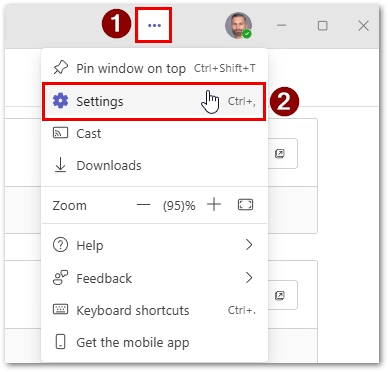
From the left navigation menu, select: Accounts and orgs
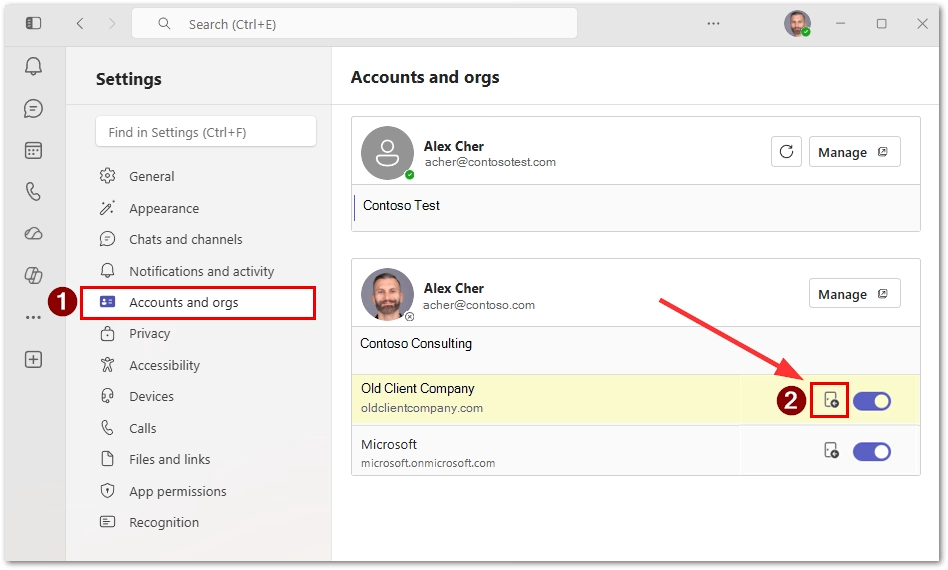
This displays your signed-in Microsoft accounts along with the organizations associated with each account.
Step 2: Locate the Guest Organization
Under your account, locate the external organization that you want to remove.
You may see multiple organizations listed if you have been invited as a guest to several Microsoft 365 tenants.
In the example below, the highlighted organization is an external tenant that is no longer needed.
Step 3: Select the Leave Organization Icon
Next to the external organization, select the Leave organization icon.
Microsoft Teams may open a browser window to complete the process.
Depending on your Teams version and the configuration of the external tenant, the option may appear as an icon rather than displaying the words Leave organization.
Step 4: Confirm That You Want to Leave
A Microsoft account page will open for the external organization.
Select: Leave to confirm that you want to leave the organization.
Once completed, your guest identity in that external Microsoft Entra ID tenant is removed.
Important: Leaving an organization can remove your access to Teams, SharePoint sites, files, applications, and other resources that were made available to your guest account. Make sure you no longer require access before proceeding.
Option 2: Remove the Guest Organization in My Account Portal
You can also remove an organization directly from the Microsoft My Account portal.
Step 1: Open the Organizations Page
Browse to: https://myaccount.microsoft.com/organizations
Sign in using the Microsoft work or school account associated with the guest organization.
You can also browse to: https://myaccount.microsoft.com
and select: Organizations
Step 2: Locate the External Organization
The Organizations page displays your home organization along with other organizations where your account has been added as a guest.
Under Other organizations you collaborate with, locate the organization that you want to remove.
Step 3: Leave the Organization
Select: Leave organization next to the organization. A new browser tab may open.
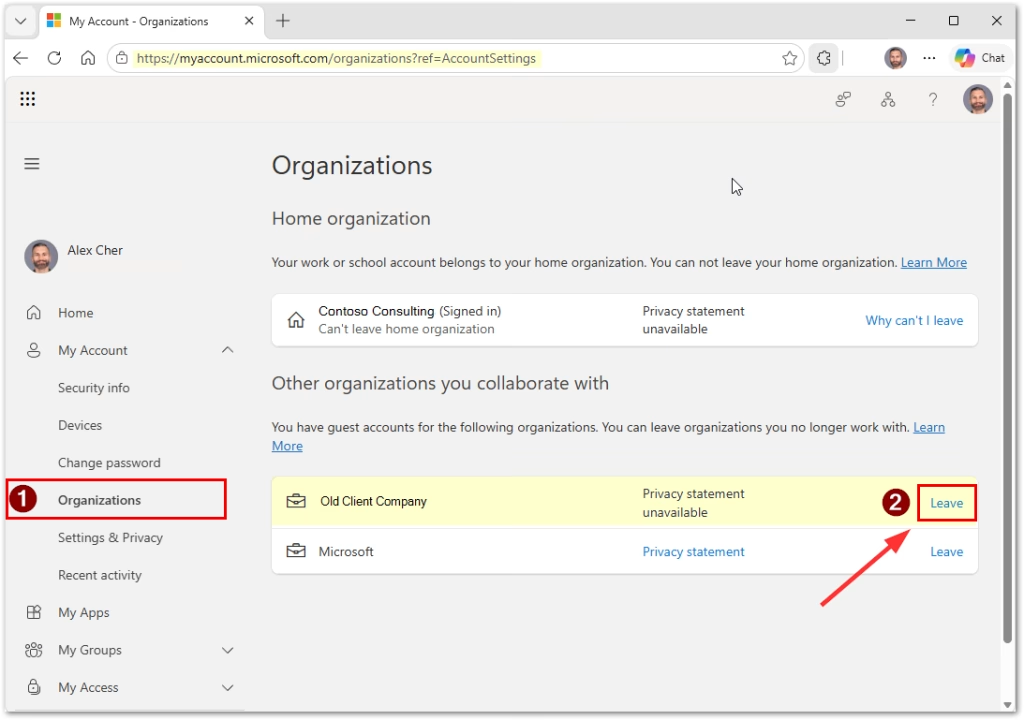
Select: Leave again to confirm.
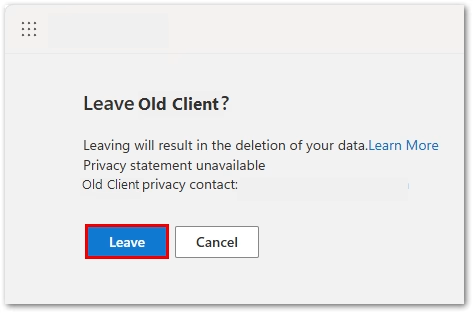
Microsoft will then begin removing your guest identity from that organization.
Verify the Organization Has Been Removed from Teams
After leaving the organization, return to Microsoft Teams.
Navigate back to: Settings → Accounts and orgs
The organization should eventually disappear from the list.
The change may not always appear immediately because Teams can retain cached account and organization information.
If the old organization is still displayed:
- Close and reopen Microsoft Teams.
- Sign out of Teams and sign back in.
- Check Teams on the web.
- Test using an InPrivate or Incognito browser session.
- Allow some time for the change to propagate.
Using an InPrivate browser is also a useful way to determine whether you are seeing stale Teams or browser session information.
What If “Leave Organization” Is Not Available?
You may occasionally find that the option to leave an organization is unavailable or that Microsoft displays a message indicating that you cannot leave.
Microsoft Entra administrators can configure whether external users are permitted to remove themselves from an organization.
If self-service removal is not allowed, you will need to contact the Microsoft 365 or Microsoft Entra administrator of the organization that owns the guest account.
Ask them to delete your guest user account from their Microsoft Entra ID tenant.
An administrator can locate the guest account from:
Microsoft Entra admin center → Entra ID → Users
The administrator can then locate the guest user and delete the account.
Removing a Guest Org Is Different from Signing Out of Teams
It is important to distinguish between signing out of Teams and leaving an external Microsoft Entra organization.
Signing out only ends the current Teams session.
Similarly, removing a work or school account from Windows or from the Teams application does not necessarily delete the guest identity in the external organization’s Microsoft Entra ID tenant.
If an external organization continues to appear under Accounts and orgs, use the Leave organization process instead.
For Team Owners: Removing a Guest from a Specific Team
There is another guest-removal scenario that should not be confused with leaving an organization.
If you are a Team owner and want to remove an external user from one specific Team, you can remove their membership without deleting their Microsoft Entra guest account.
In Microsoft Teams:
- Locate the Team.
- Select More options (…) next to the Team name.
- Select Manage team.
- Open Members.
- Locate the guest under Members and guests.
- Select Remove next to the guest.
This removes the guest from that specific Team.
It does not delete the guest account from Microsoft Entra ID.
The guest may still have access to:
- Other Teams
- Microsoft 365 Groups
- SharePoint sites
- Enterprise applications
- Other resources that were assigned separately
Microsoft specifically notes that Team owners can remove users from a Team, but an administrator is required to remove someone from the organization itself.
Removing the Guest Account as an Administrator
If you administer the Microsoft 365 tenant and want to completely remove an external guest from your organization, remove the guest identity from Microsoft Entra ID.
Open the: Microsoft Entra admin center
Then navigate to: Entra ID → Users → All users
Locate the guest account and verify that you have selected the correct external user.
Select: Delete user
Deleting the guest account removes the identity from the tenant rather than simply removing membership from one Team.
Before deleting a guest account, confirm that the account is no longer required for other Teams, SharePoint sites, applications, Microsoft 365 Groups, or other resources.
Summary
Guest organizations shown in Microsoft Teams are tied to guest identities in Microsoft Entra ID.
If you want to remove an old guest organization from your Teams account, you can now initiate the process directly from:
Microsoft Teams → Settings → Accounts and orgs
Locate the external organization and select the Leave organization option.
You can also perform the same operation from: https://myaccount.microsoft.com/organizations
Leaving the organization removes your guest relationship with that external tenant.
If you are simply removing another user from one Team, use Manage team → Members instead. That removes Team membership but leaves the underlying Microsoft Entra guest account intact.
References
- How to create, invite, and delete users in Microsoft Entra ID
- Manage accounts and organizations in Microsoft Teams
- Manage organizations for a work or school account in the My Account portal
- Leave an organization – Microsoft Entra External ID
- Remove someone from a team in Microsoft Teams
- Guest access in Microsoft Teams
- Sign out or remove an account from Microsoft Teams
- Configure external collaboration settings – Microsoft Entra External ID
Found this useful? Share with others: