Azure Virtual Desktop with Entra Hybrid Join
Overview
This guide walks you through deploying Azure Virtual Desktop using Entra ID only. This means no traditional Active Directory domain controllers and no hybrid join. Session hosts are joined directly to Entra ID and user profiles are stored using FSLogix with Azure Files and Entra Kerberos authentication.
This model simplifies deployments, reduces infrastructure cost, and works especially well for cloud native or remote first organizations.
Why Use Entra ID Only
- No domain controllers required
- Rapid deployment in fully cloud environments
- Less complexity and fewer moving parts
- Modern authentication and Conditional Access support
- Ideal for remote workforce and BYOD compatible access
Architecture Summary
Components involved in this deployment:
- Host pool with Windows 11 Enterprise multi session session hosts
- Entra ID join for virtual machines
- Azure Files share for FSLogix profile storage
- Remote Desktop clients (Windows, Web, macOS, iOS, Android)
- Optional scaling and monitoring using Azure Monitor and Log Analytics
Prerequisites
- Licensing for Azure Virtual Desktop:
- Microsoft 365 E3, E5, Business Premium, or Windows Enterprise E3/E5
- Azure subscription and resource group
- Region supporting Azure Virtual Desktop
- Virtual network and subnet with outbound internet access
- Required roles:
- Desktop Virtualization Contributor
- Virtual Machine Contributor
- Storage File Data SMB Share Contributor for FSLogix profiles
Step by Step Deployment
1. Create Azure Files storage for FSLogix
- In Azure Portal search for Storage Accounts and select Create.
- Choose Standard general purpose v2.
- Select Azure Files under Preferred storage type
- Keep everything else as default
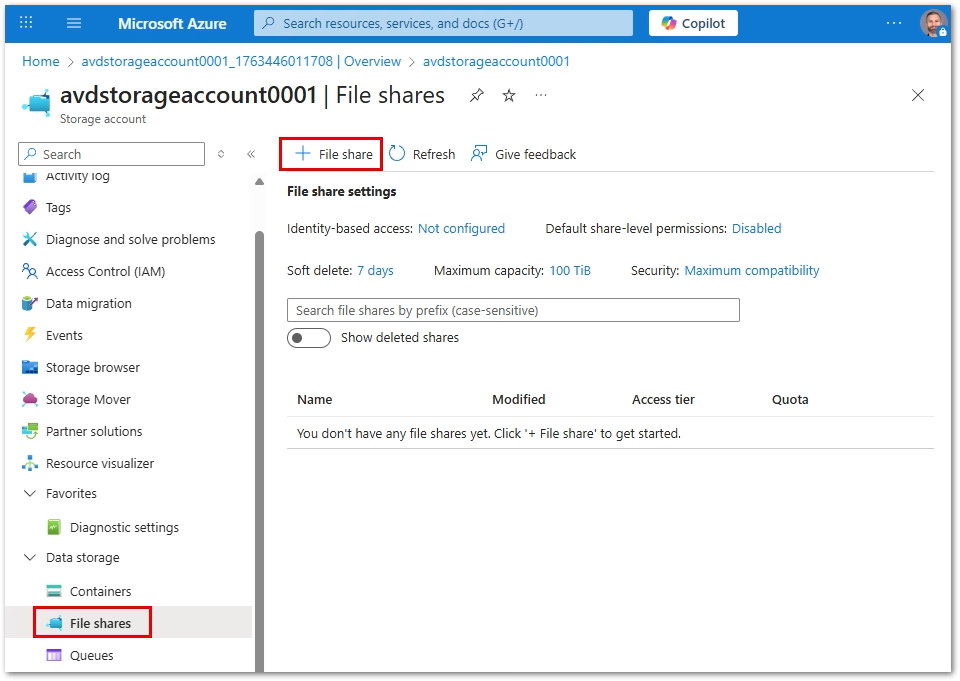
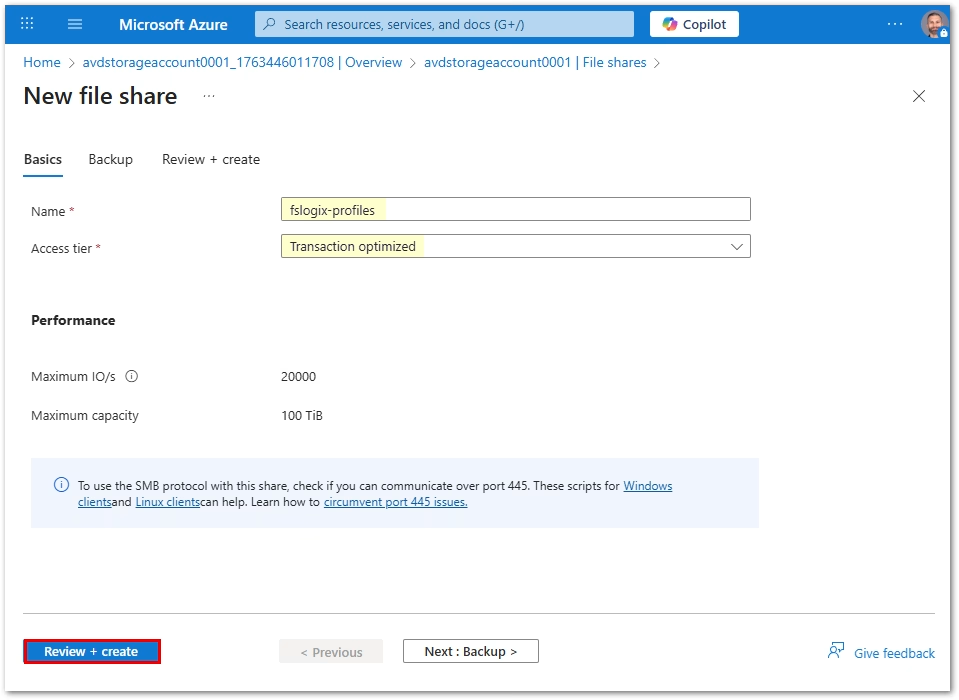
- After creation open Data Storage/File shares and create:
- Name example: fslogix-profiles
- Access tier: Transaction Optimized
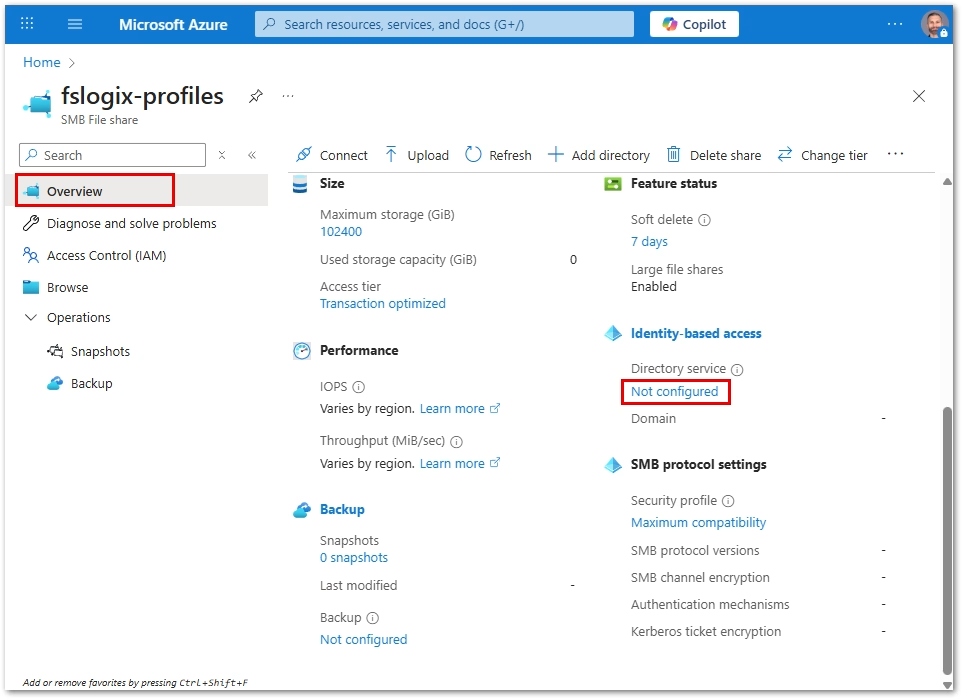
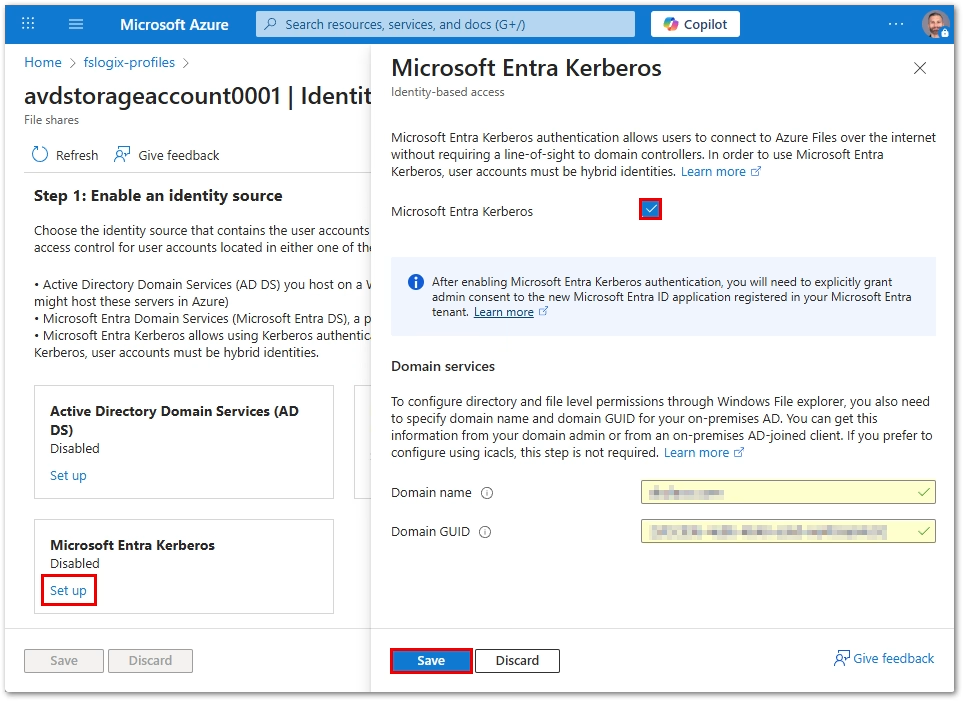
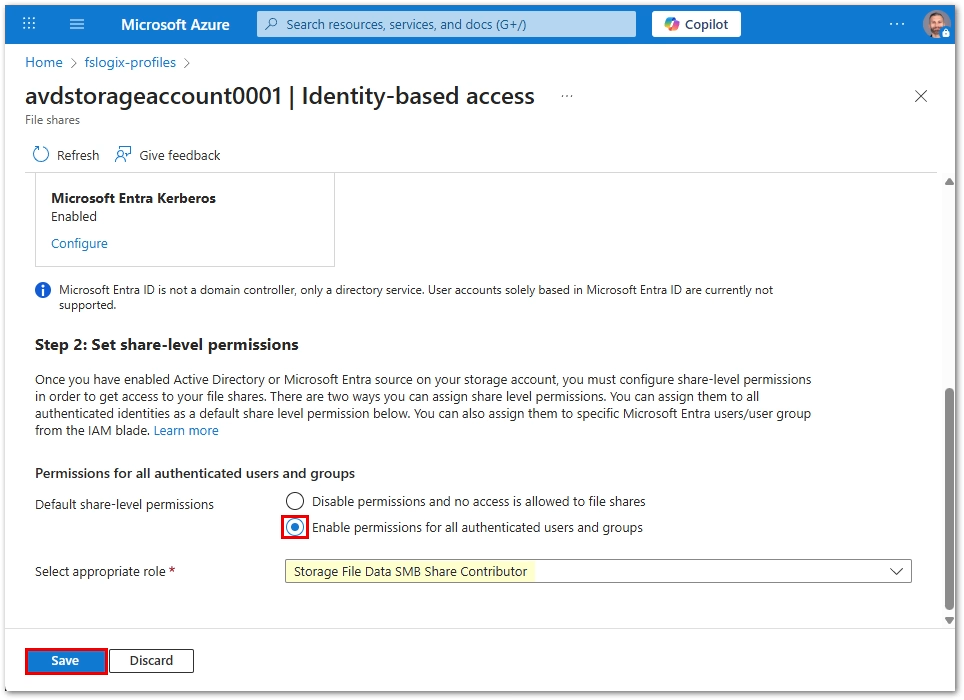
- Open Overview and under Identity enable Entra Kerberos.
- Assign permissions:
- Storage File Data SMB Share Contributor to user group that will use AVD.
- Download Azure Storage Explorer
- Connect to the file share with Azure Storage Explorer on a management machine and set NTFS permissions:
- Admins Full control
- Users Modify
2. Create a Host Pool
- Go to Azure Virtual Desktop → Host pools → Create.
- Set host pool type to Pooled.
- Set load balancing to Breadth first.
- Proceed to the virtual machines section.
3. Add Session Hosts (Virtual Machines)
- Enable Add virtual machines.
- VM naming prefix example: avd-w11-ent-
- Choose image:
- Windows 11 Enterprise multi session with Microsoft 365 Apps
- Select VM size suitable for workload:
- Example: D8s_v5 for heavier knowledge worker use
- Set number of VMs to start with:
- Example: 2 or 3 for pilot
- Networking:
- Select VNet and subnet with outbound internet
- Join type:
- Entra ID Join
4. Workspace and Application Group
- Create or use existing workspace.
- Ensure a Desktop application group is created and associated.
5. Assign Users
- Go to Azure Virtual Desktop → Application groups.
- Open the Desktop application group.
- Assign:
- Entra users or Entra security groups (recommended)
6. Configure FSLogix on Session Hosts
FSLogix is often preinstalled. If not, install it and configure these registry settings:
HKLM\SOFTWARE\FSLogix\Profiles
Enabled=1
VHDLocations=\\<storageaccount>.file.core.windows.net\fslogix-profiles
VolumeType=vhdx
Sign in with a test user and confirm a VHDX file is created.
Connecting to AVD
Users can connect through:
- Windows Remote Desktop Client
- Remote Desktop Web Client
- macOS, iOS, and Android Remote Desktop apps
Recommended Next Steps
- Configure scaling plans for cost optimization
- Enable monitoring and AVD Insights with Log Analytics
- Apply Conditional Access and MFA
- Add NSGs and Defender for Cloud protections
- Enable Azure Backup for Azure Files
Frequently Asked Questions
Can you use Entra ID only if devices are not domain joined?
Yes, this model does not require AD DS or hybrid join.
Do users need Azure AD joined devices to connect?
No. Any supported Remote Desktop client can connect.
Does FSLogix work without Active Directory?
Yes, when using Azure Files with Entra Kerberos authentication.
References
- Microsoft Learn: Azure Virtual Desktop overview
- Microsoft Learn: FSLogix Profile Container
- Microsoft Learn: Azure Files identity authentication
Found this useful? Share with others: