Switch Group Source of Authority (SOA) to Entra

Step by step guide
1. User Graph Explorer to grant permissions to Enterprise App. Open Graph Explorer: https://developer.microsoft.com/en-us/graph/graph-explorer
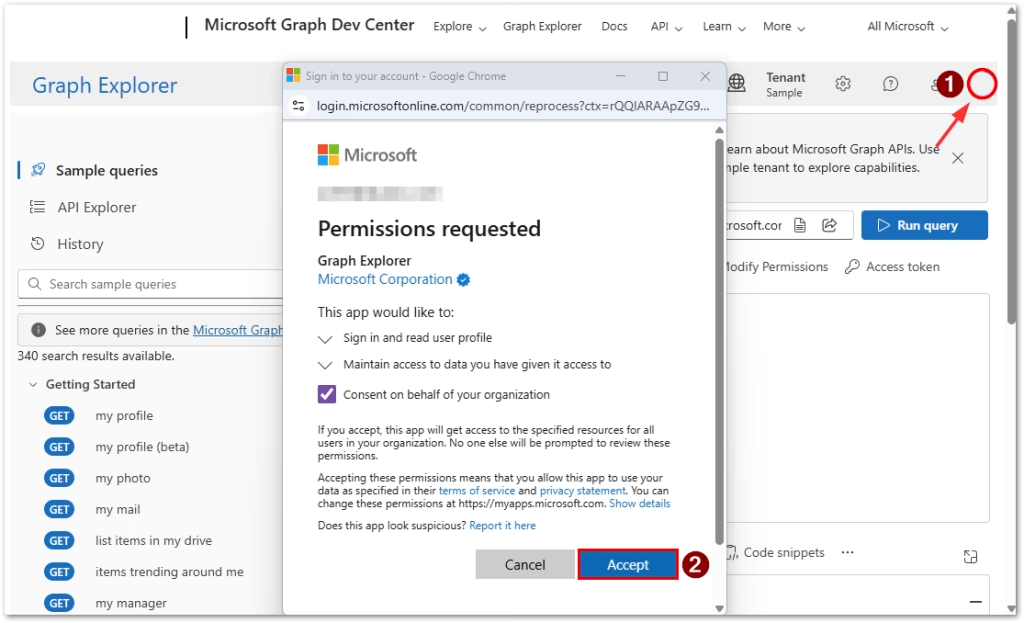
2. Initially, you are in the Sample tenant. Sign in to your account with Application Administrator or Cloud Application Administrator
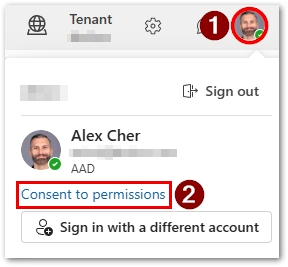
3. Once signed-in, you are in your tenant. Click on the avatar again and click “Consent to permissions”
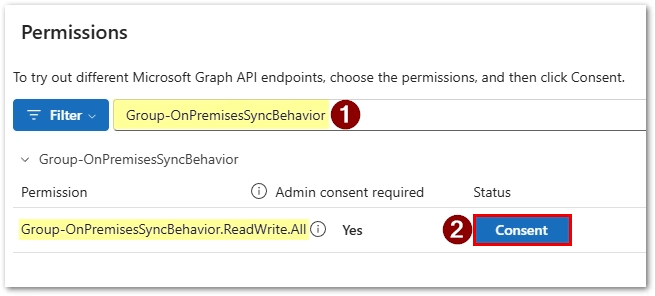
4. Search for Group-OnPremisesSyncBehavior and select Consent for the permission
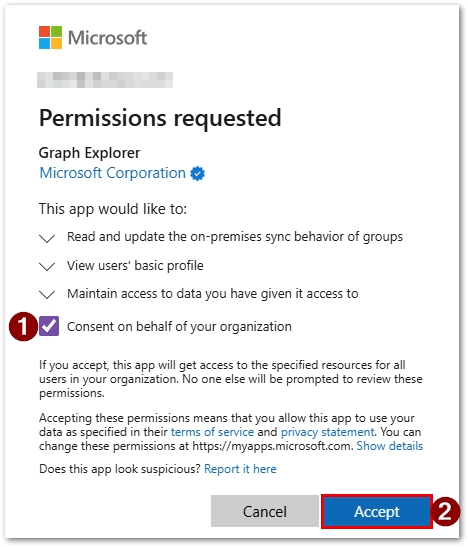
5. Select Consent on behalf of the organization and click Accept:
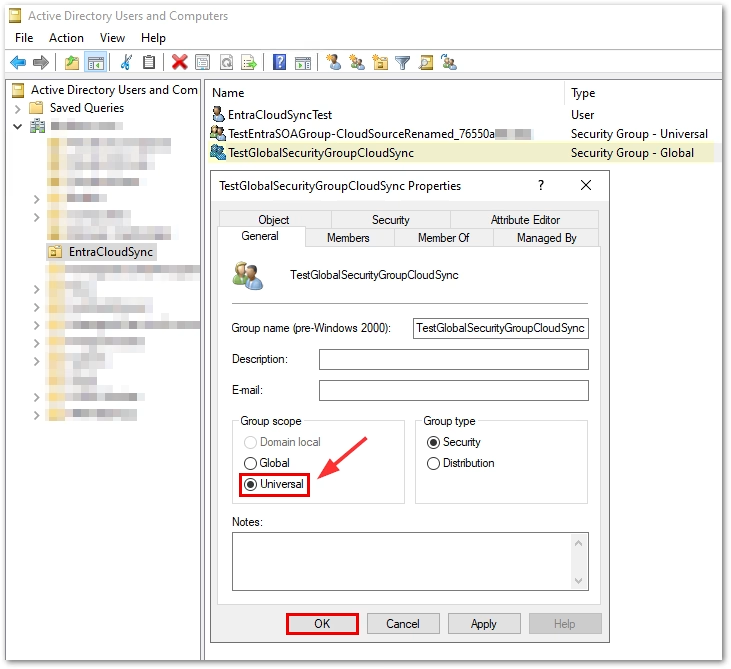
6. Change the group scope for the AD DS groups to Universal.
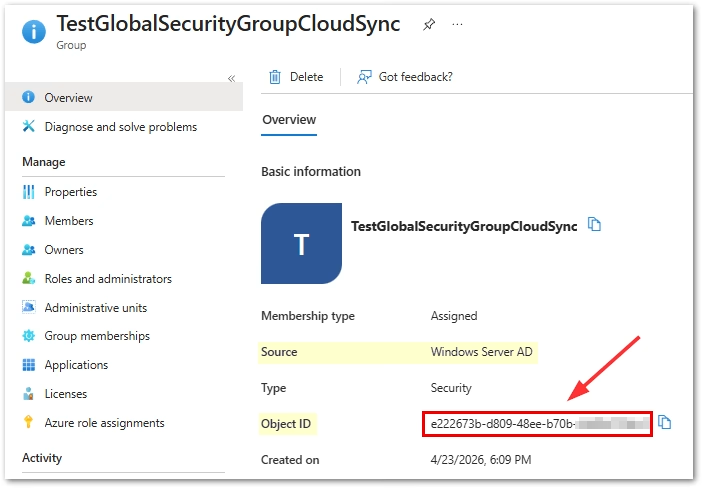
7. Get the object ID of your group (notice, the source is Windows Server AD):
8. Check the current SOA status of your group (replace {ID} with the Object ID of your group):
GET https://graph.microsoft.com/v1.0/groups/{ID}/onPremisesSyncBehavior?$select=isCloudManaged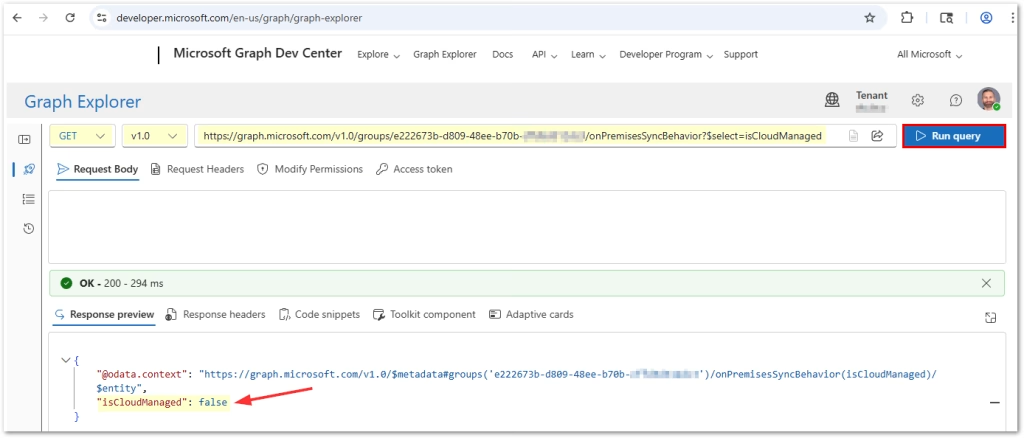
The “isCloudManaged” value is “false” – that means it’s an AD managed group.
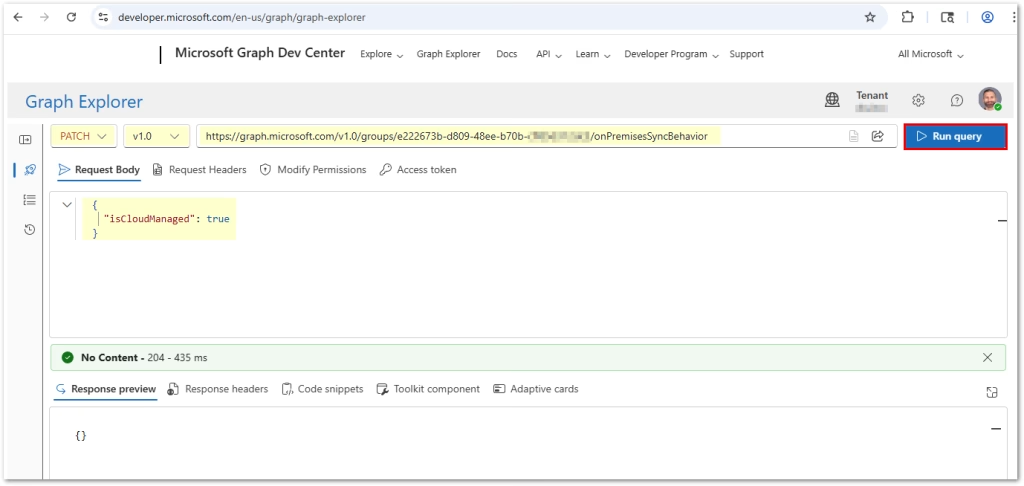
9. Convert group SOA to cloud by running the patch command:
PATCH https://graph.microsoft.com/v1.0/groups/{ID}/onPremisesSyncBehavior
   {
     "isCloudManaged": true
} 
10. Check again to see if the group is now cloud-managed (i.e. Entra SOA) by running the GET command.
GET https://graph.microsoft.com/v1.0/groups/{ID}/onPremisesSyncBehavior?$select=isCloudManaged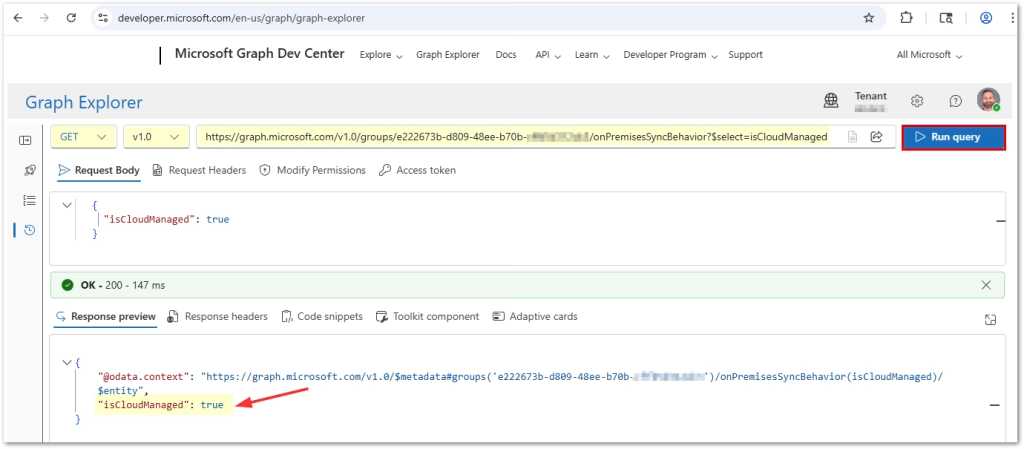
Because the “isCloudManaged” value is “true” – this means it’s an Entra managed group now.
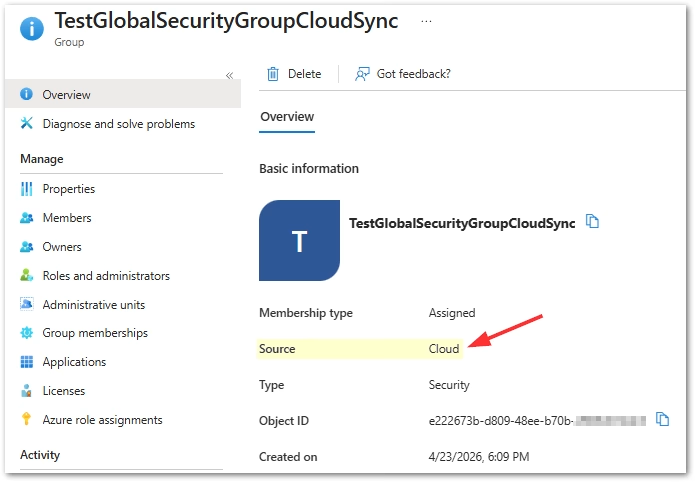
11. If we check the group in Entra now, we will see that the Source = Cloud and properties are now editable:
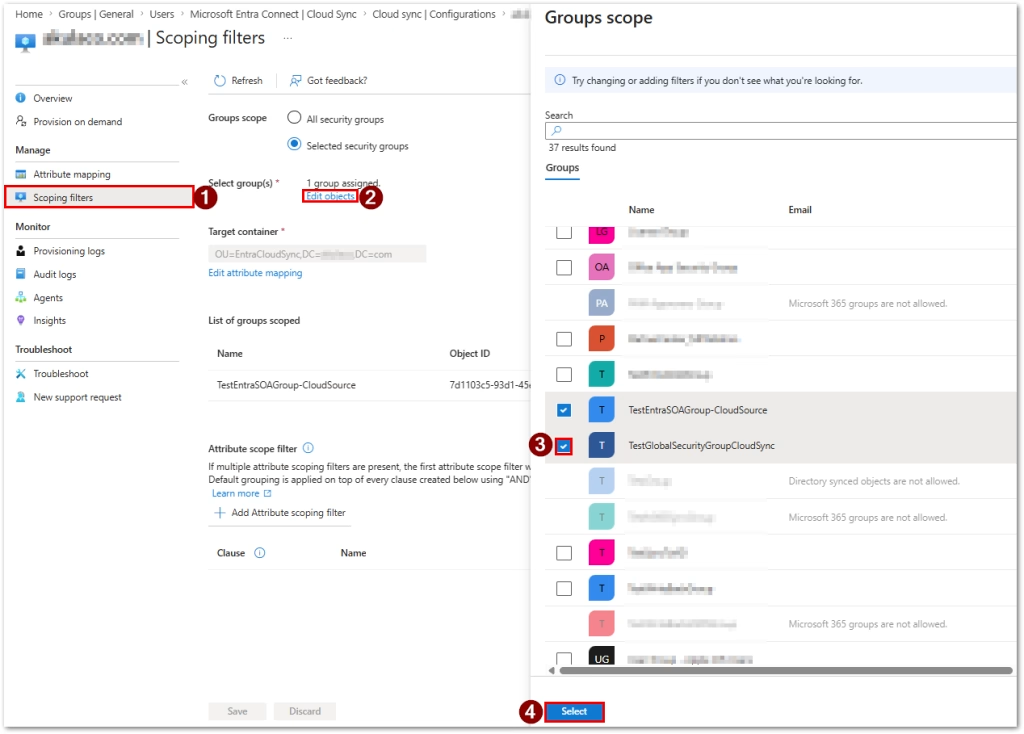
12. Make sure to add your new group to sync scope. Select, then click Save on the next screen.
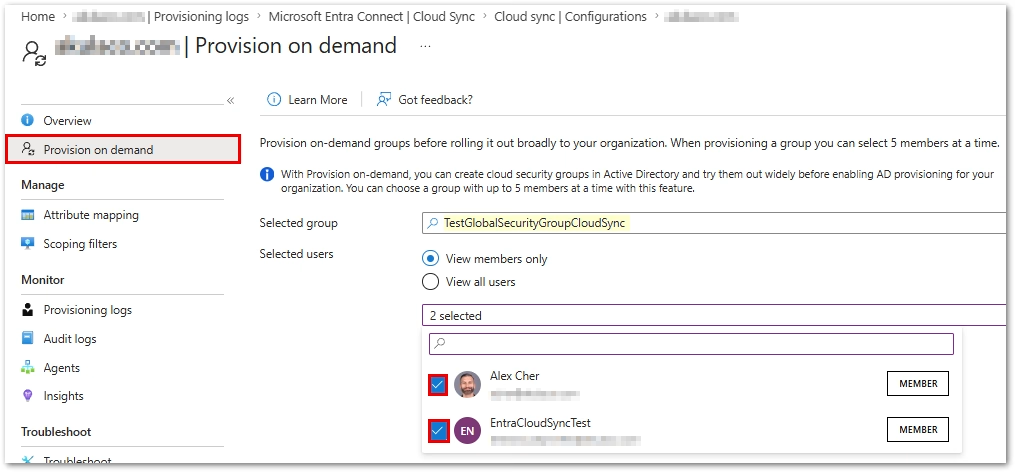
13. Provision the group on demand, selecting the group and a couple of group member user accounts which are present in AD and Entra. Click on the Provision button (not seen below):
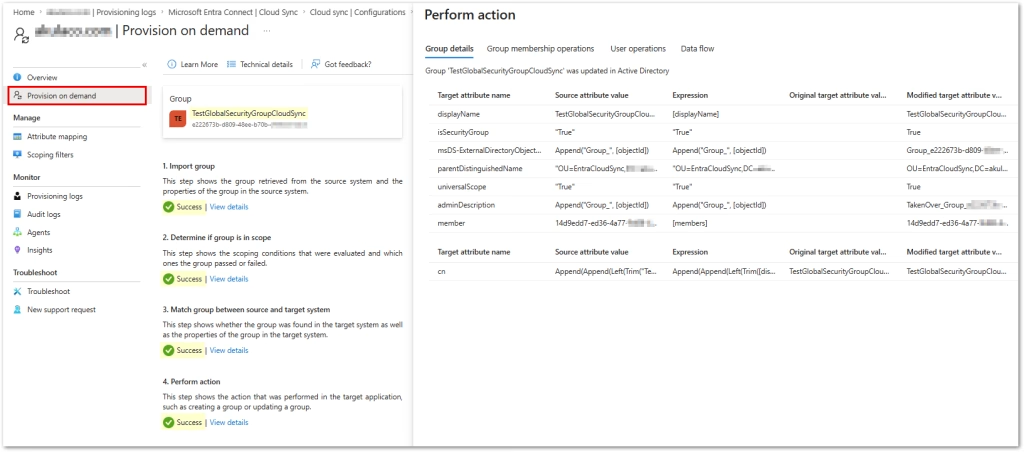
14. Confirm successful group provisioning:
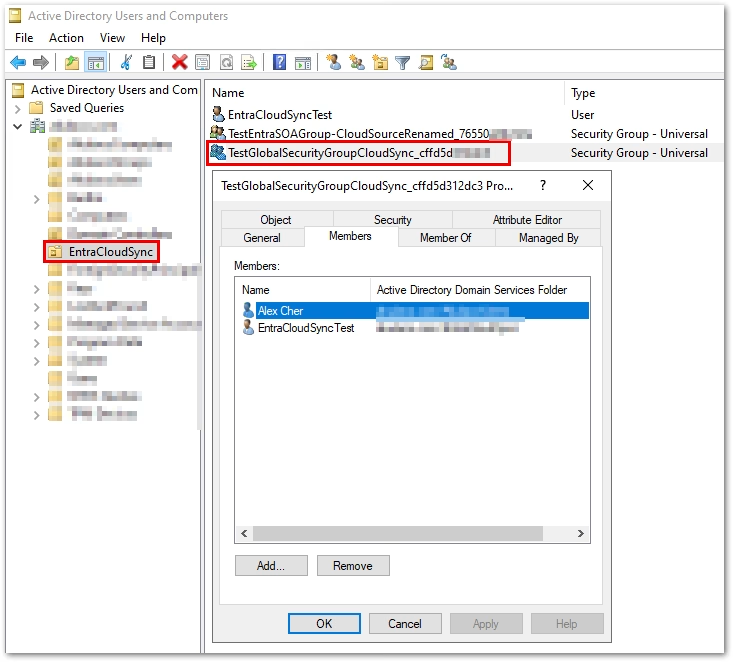
15. Check AD to validate. Notice, the group was renamed by adding an underscore and a suffix at the end:
If this worked for you, expand the scope to additional groups and users. Good luck!
Found this useful? Share with others:








[…] Switch Group Source of Authority (SOA) to Entra […]