Connect Google Workspace to Defender for Apps
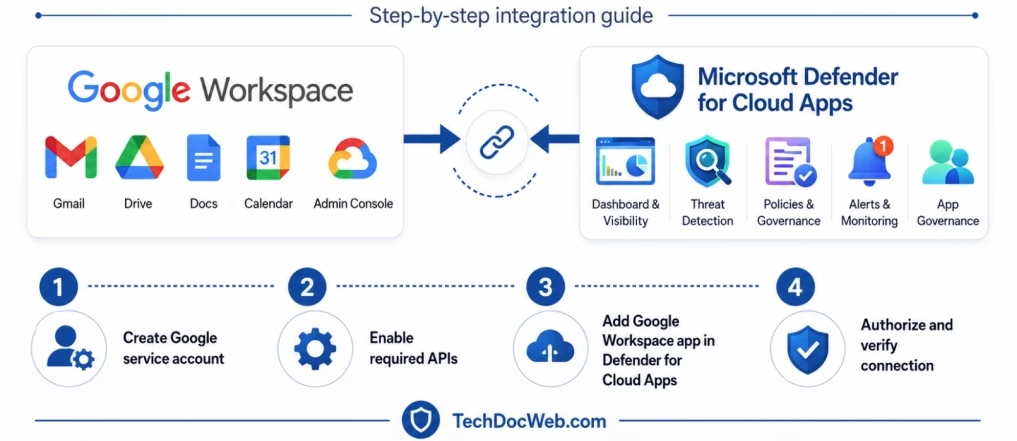
Google Workspace makes it easy for users to collaborate and share files both inside and outside the organization, but that flexibility can also introduce security risks. Sensitive data may be exposed through external sharing, public links, compromised accounts, or third-party applications with excessive permissions. By connecting Google Workspace to Microsoft Defender for Cloud Apps, organizations gain greater visibility into user activity, stronger threat detection, improved control over shared data, and the ability to identify and remediate risky OAuth applications. This article walks through the steps required to configure the Google Workspace connector and begin monitoring the environment through the Microsoft Defender portal.
Step by step guide:
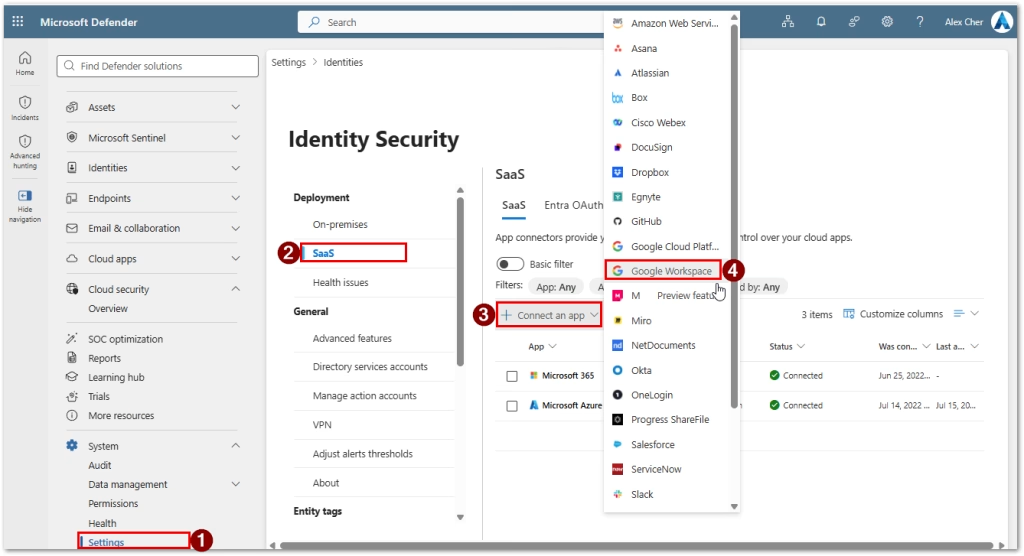
- Go to Defender portal
- Click on System / Settings
- Then under Deployment click on SaaS
- Then click on Connect and App and select Google Workspace
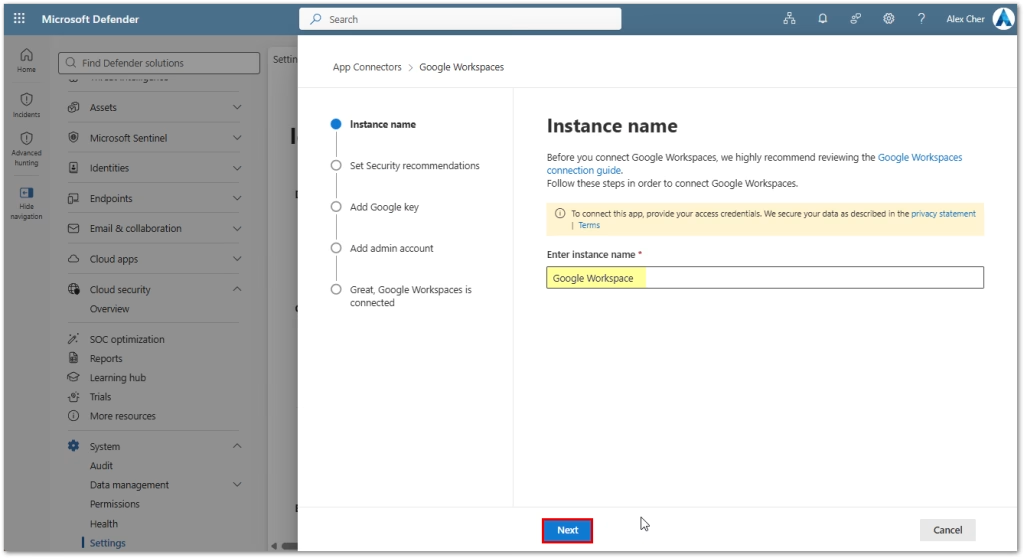
- Enter a name and click Next
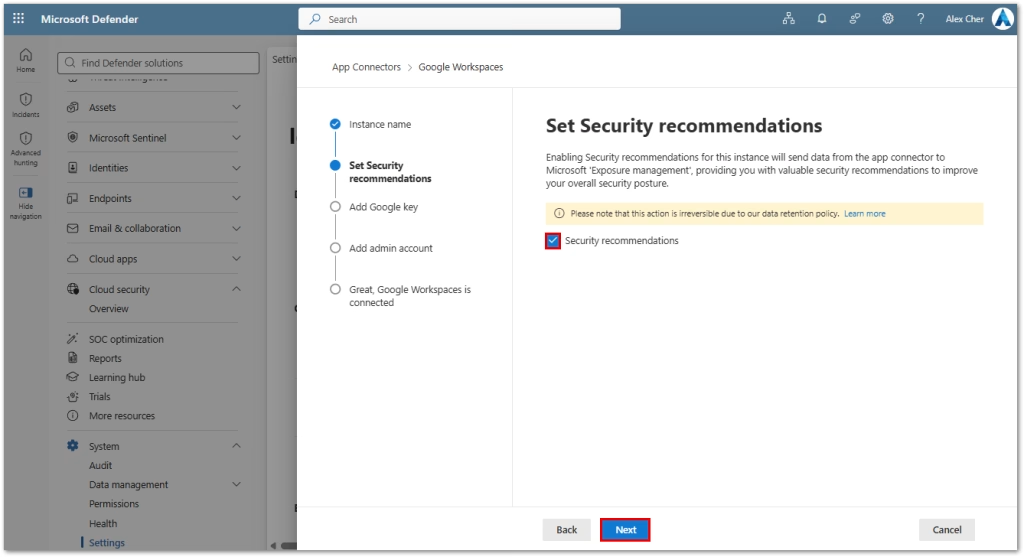
- Enable Security Recommendations and click Next
- Go to https://console.cloud.google.com/
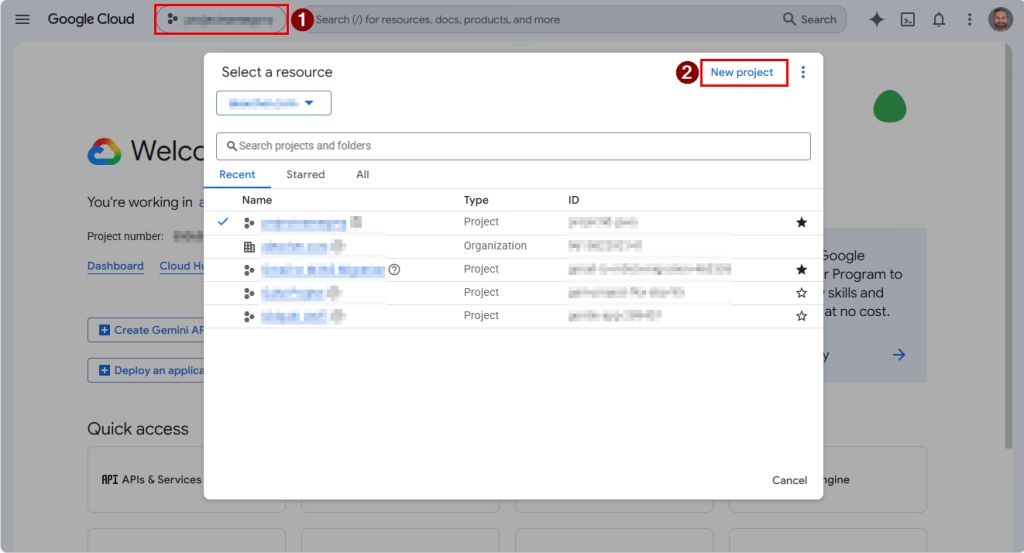
- Click on project name, create new project
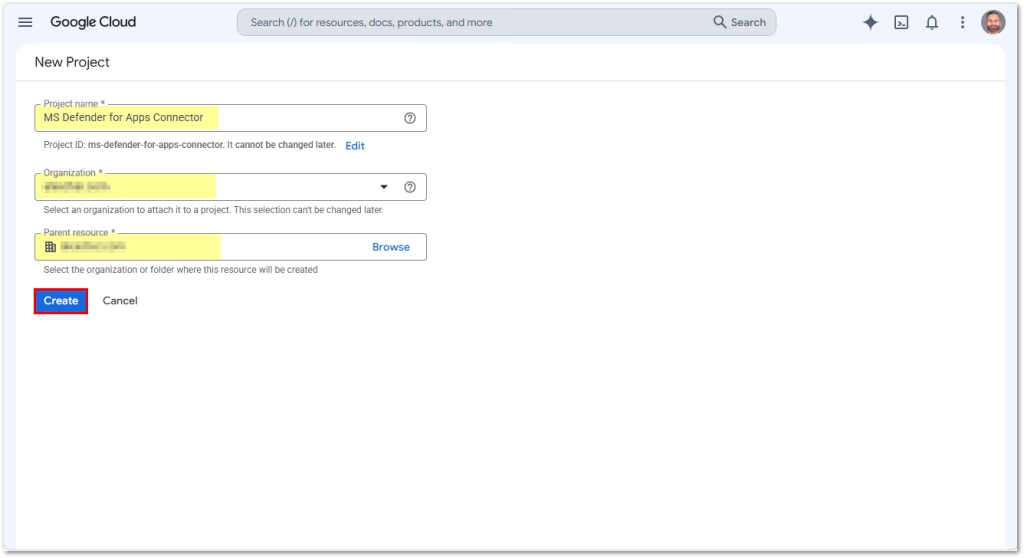
- Choose project name and click Create
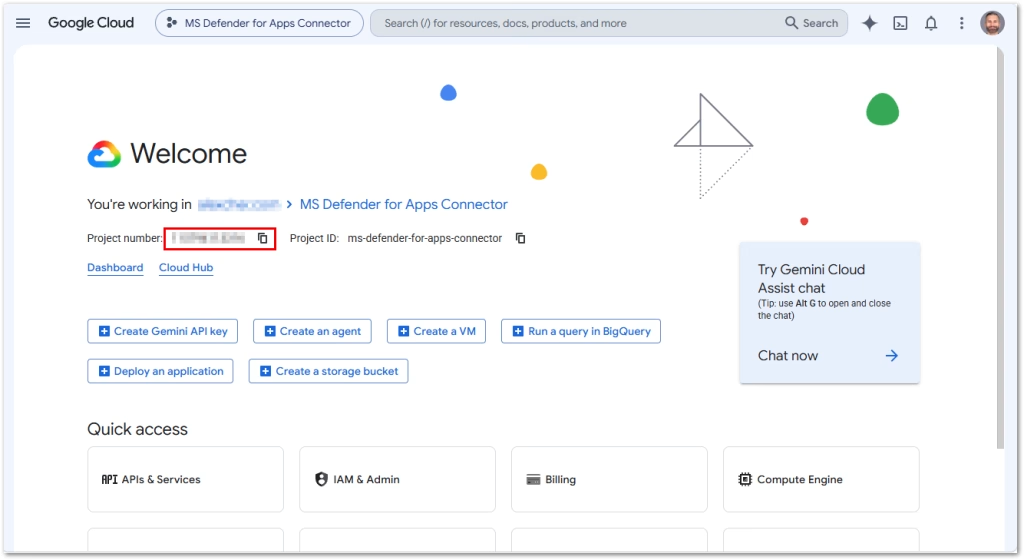
- Copy the project number, that’s one value
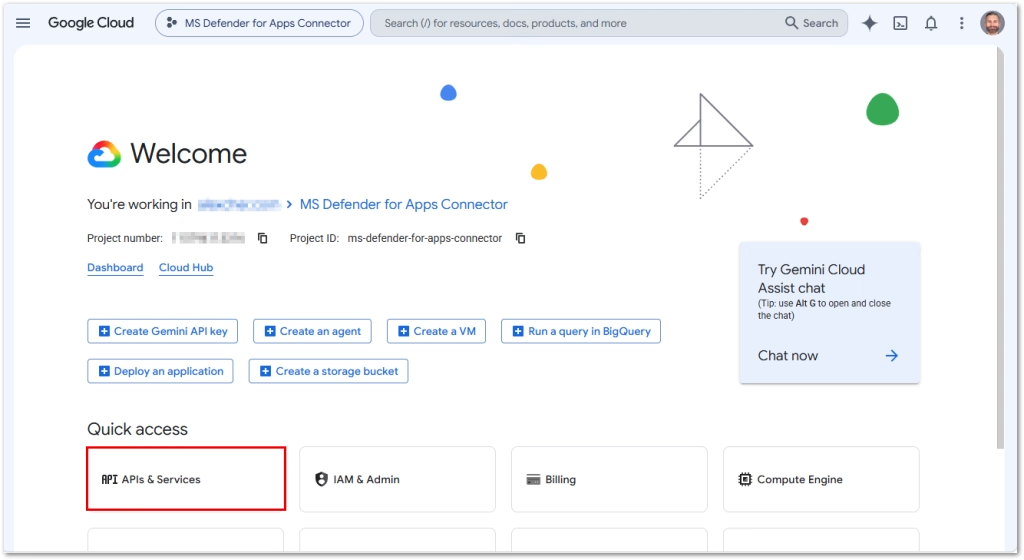
- Then go to API and Services / Library
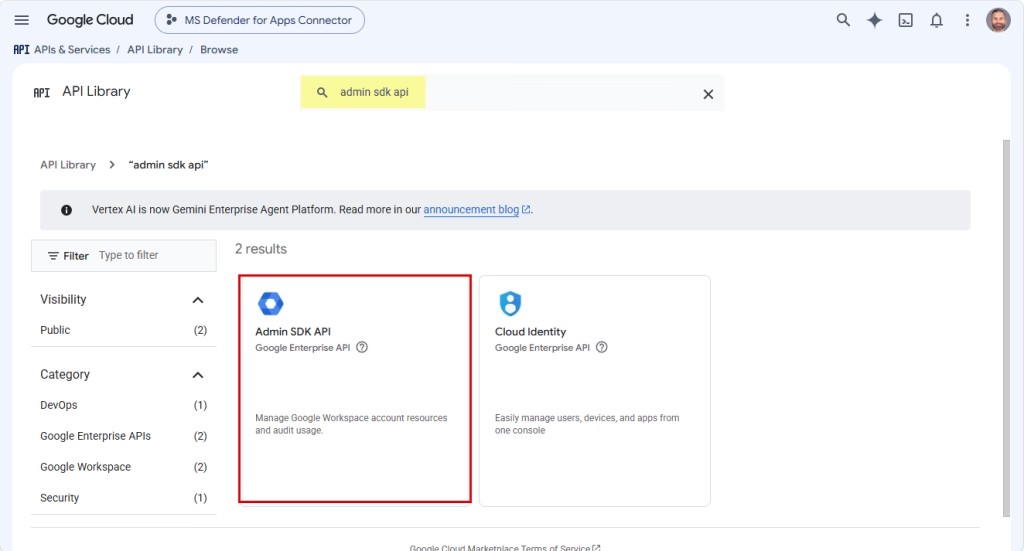
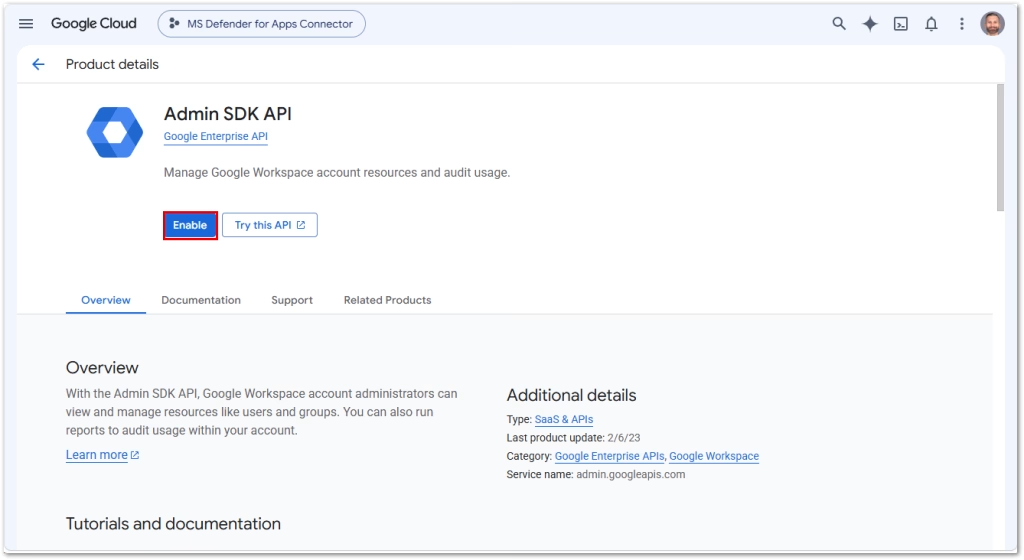
- Search for Admin SDK API and click on it, then enable
- Do the same thing for Google Drive API
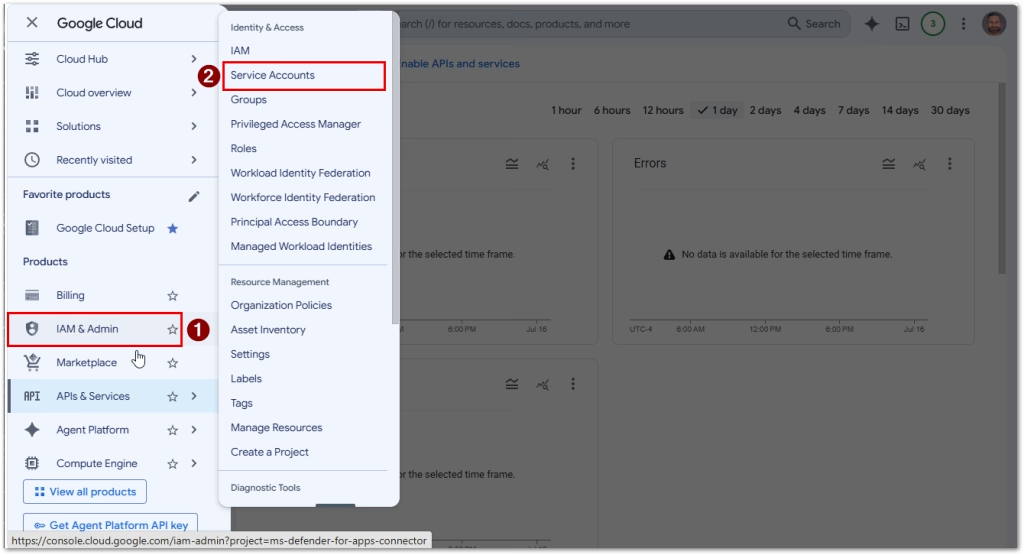
- Click on the “hamburger” to expand menu and under IAM & Admin/Service Accounts click on
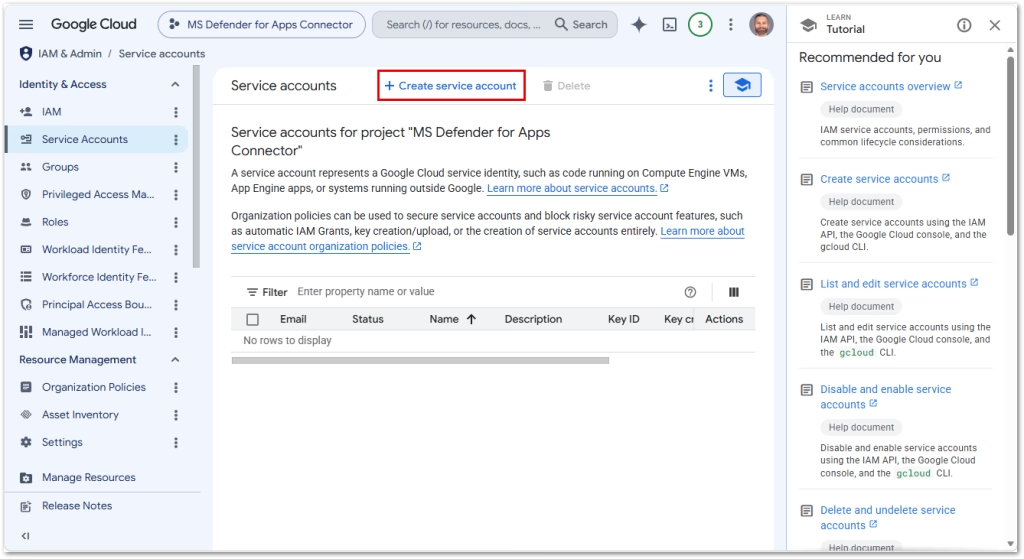
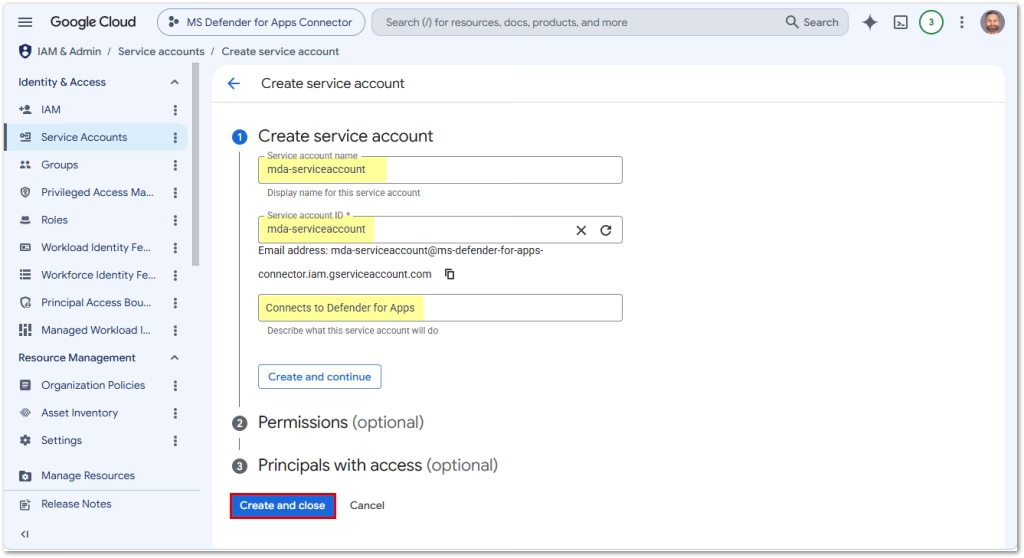
- Create a service account
- Give it a name and description
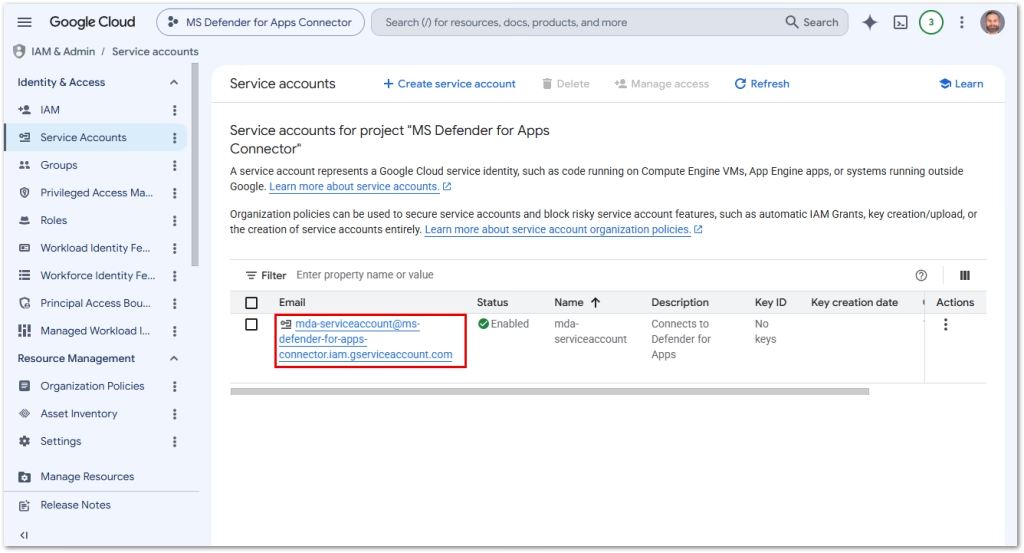
- Refresh the Service Account page and click on newly created service account
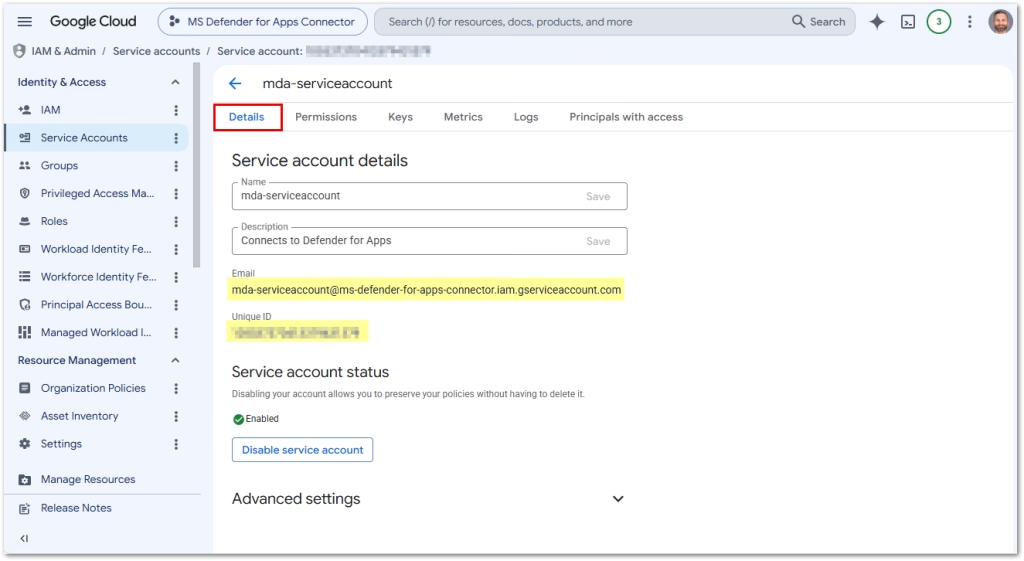
- Copy the service account email address and Unique ID for later use
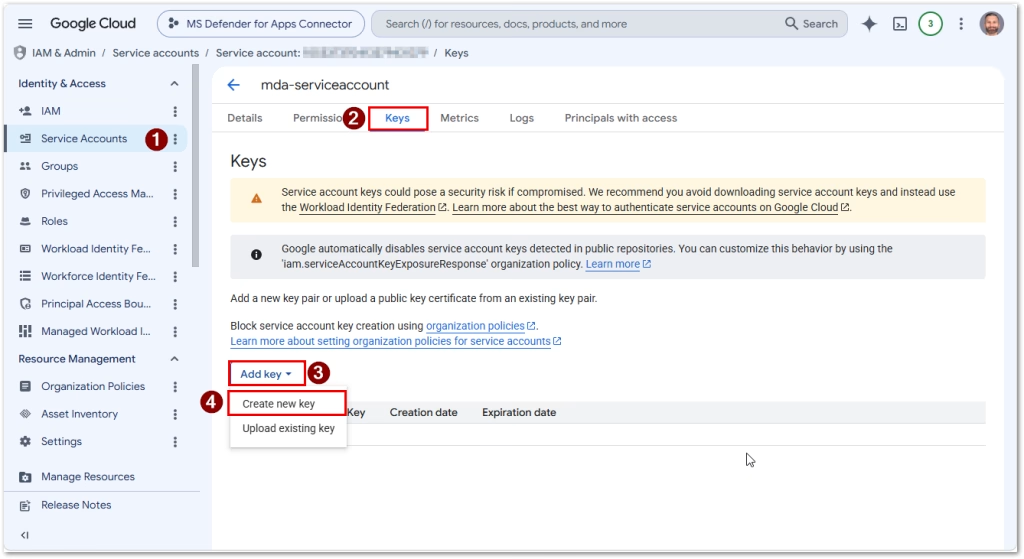
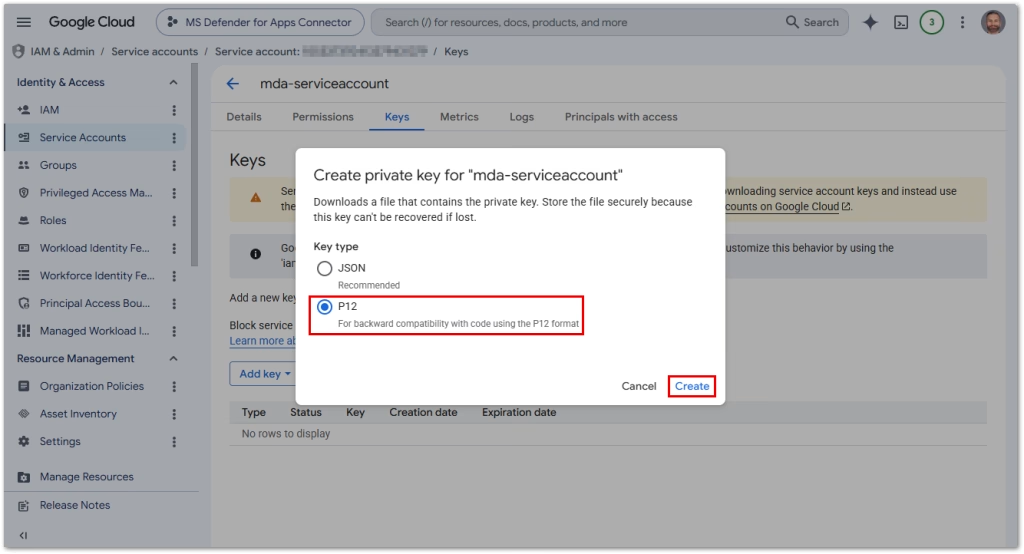
- Click Keys and Create a P12 key
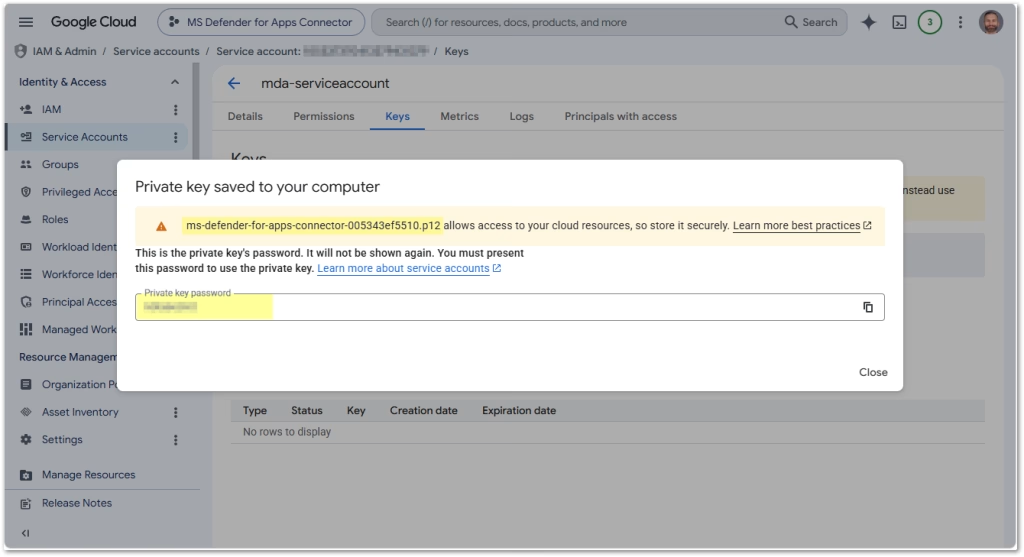
- Download the key and save the secret
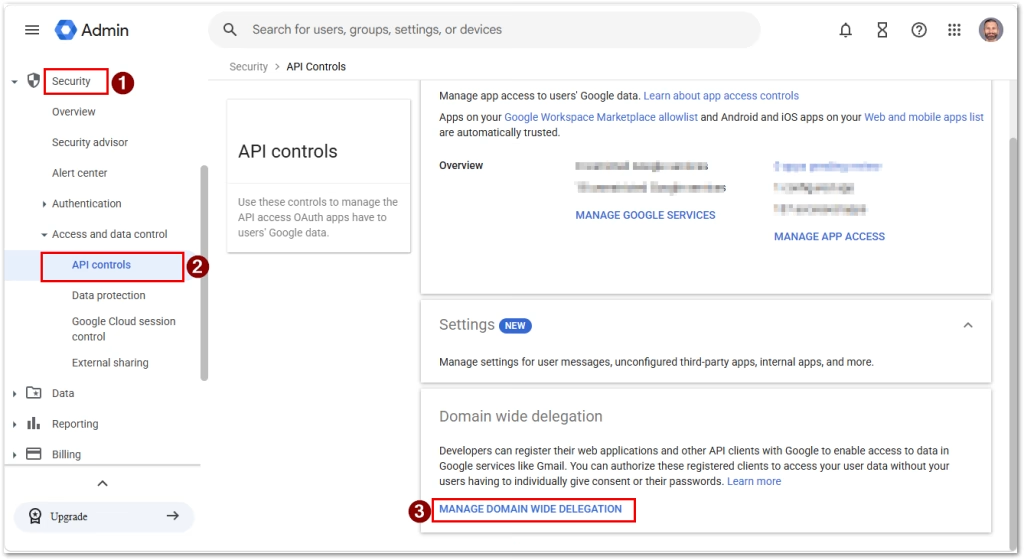
- Within Google Cloud, open Security / Access and Data Control / API controls
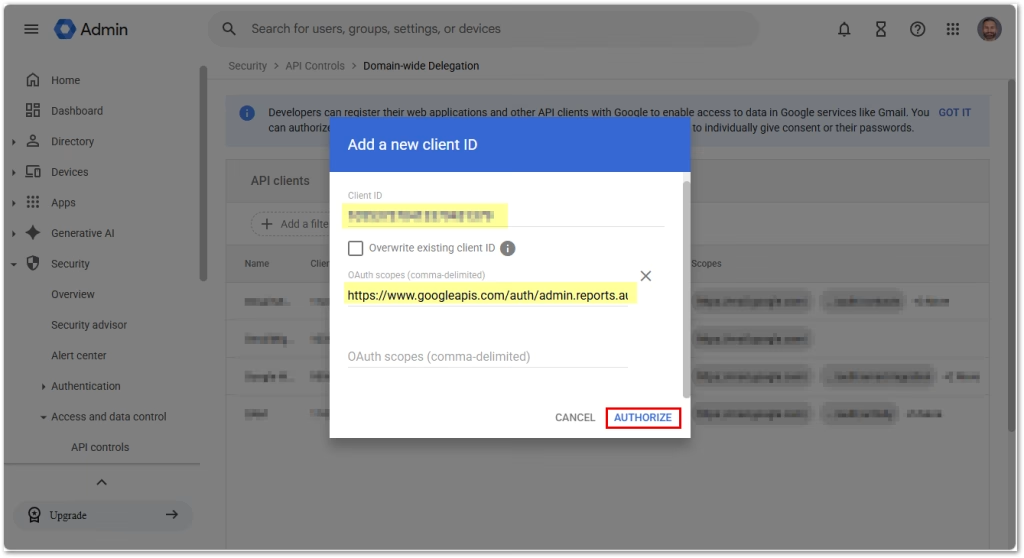
- Create a new Client ID, paste the numerical value here (not email), and paste the following OAuth scopes, then authorize:
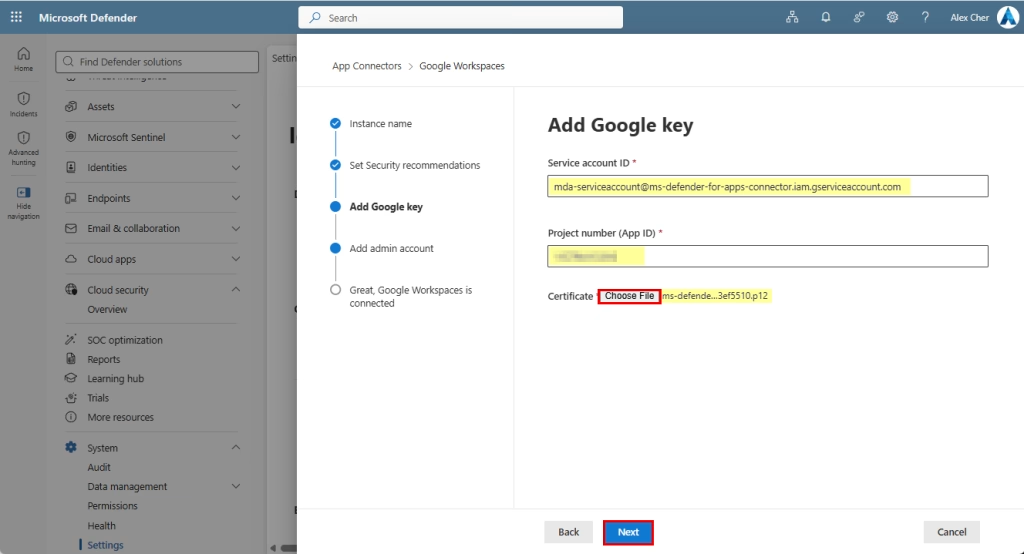
https://www.googleapis.com/auth/admin.reports.audit.readonly, https://www.googleapis.com/auth/admin.reports.usage.readonly, https://www.googleapis.com/auth/drive, https://www.googleapis.com/auth/drive.appdata, https://www.googleapis.com/auth/drive.apps.readonly, https://www.googleapis.com/auth/drive.file, https://www.googleapis.com/auth/drive.metadata.readonly, https://www.googleapis.com/auth/drive.readonly, https://www.googleapis.com/auth/drive.scripts, https://www.googleapis.com/auth/admin.directory.user.readonly, https://www.googleapis.com/auth/admin.directory.user.security, https://www.googleapis.com/auth/admin.directory.user.alias, https://www.googleapis.com/auth/admin.directory.orgunit, https://www.googleapis.com/auth/admin.directory.notifications, https://www.googleapis.com/auth/admin.directory.group.member, https://www.googleapis.com/auth/admin.directory.group, https://www.googleapis.com/auth/admin.directory.device.mobile.action, https://www.googleapis.com/auth/admin.directory.device.mobile, https://www.googleapis.com/auth/admin.directory.user - Now go back to the MDA wizard, enter the email address of service account, project number, and select the certificate
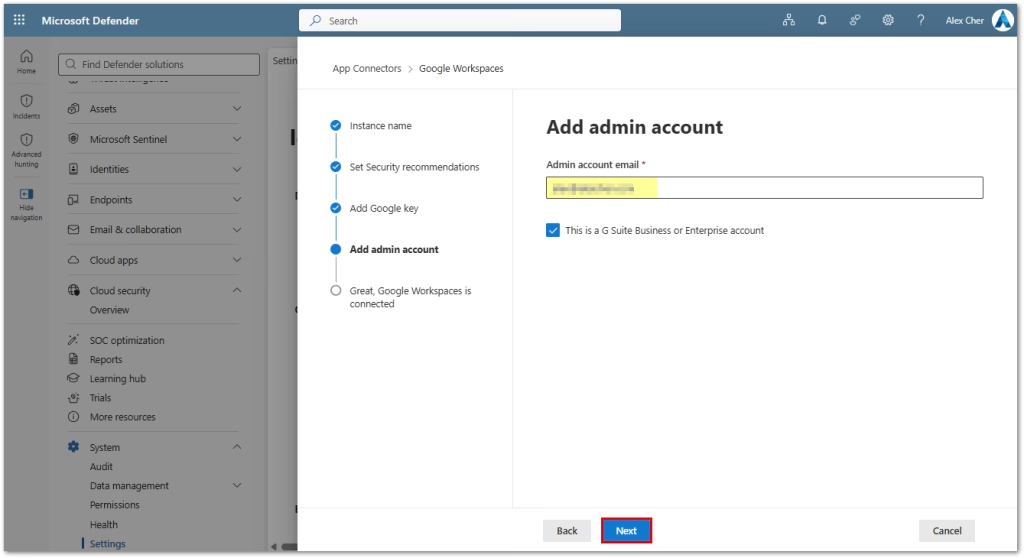
- Authenticate to Google Workspace with an Admin account and click next
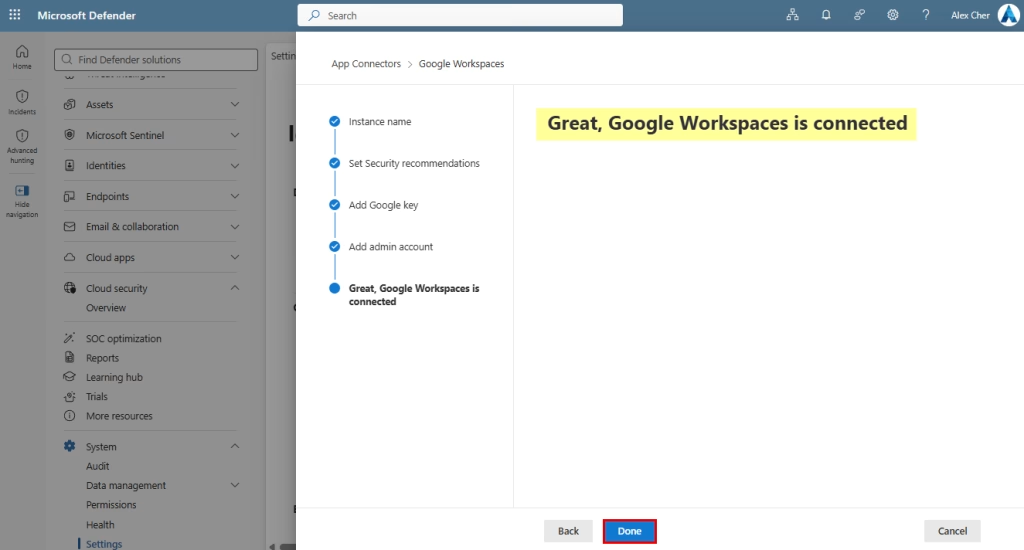
- Your Google Workspace is now connected!
- Explore your new connector (more data will be available after a day or so)
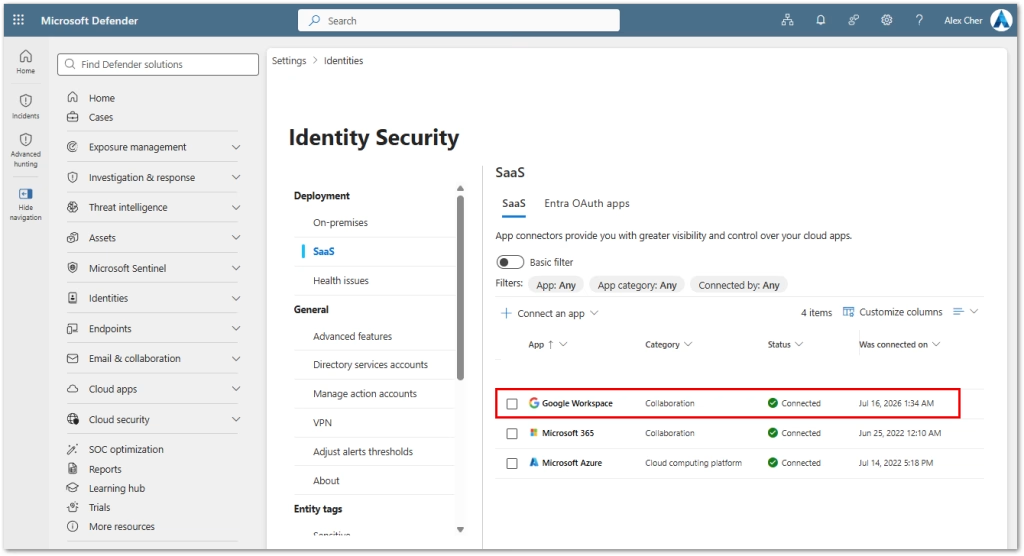
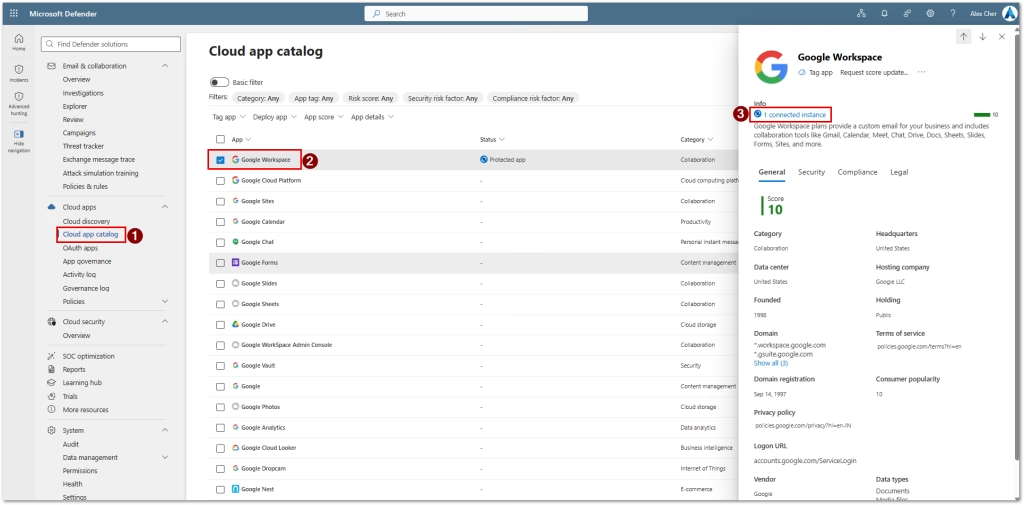
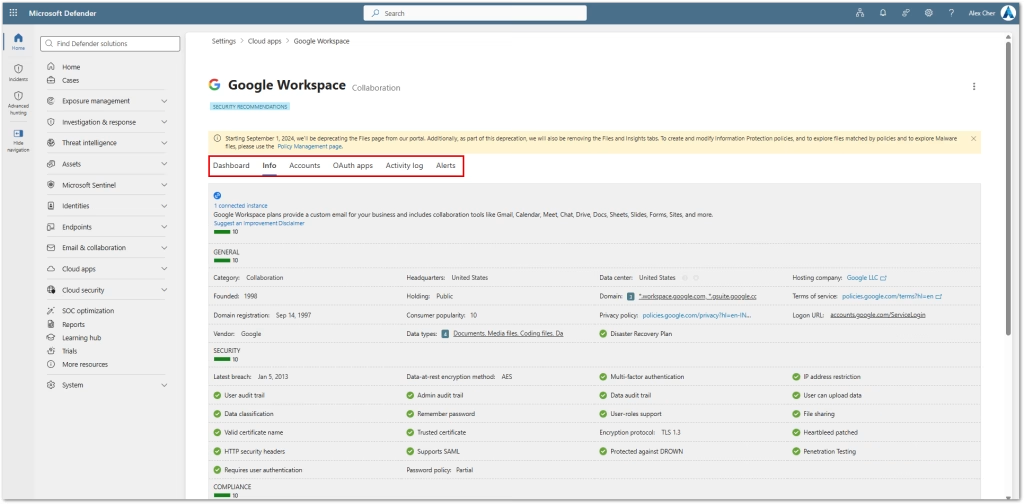
Once the connector is configured, Microsoft Defender for Cloud Apps can begin monitoring Google Workspace activity, identifying risky behavior, and providing greater visibility into users, files, and third-party applications. Review the connector status after setup and allow time for the initial data collection to complete before validating alerts, activity logs, and security findings.
References
Microsoft. How Defender for Cloud Apps helps protect your Google Workspace environment. Microsoft Learn.
Found this useful? Share with others: